
Native SDKs
Pine Labs Online MCP Server provides comprehensive access to Pine Labs Online APIs through the following list of tools. Each tool corresponds to specific Pine Labs Online API endpoint and enables AI assistants to perform payment operations seamlessly.
Tool Categories and Coverage
The MCP Server for code execution includes 20+ tools, organized into the following categories:
- Orders (3 tools)
Manage full order lifecycle: create, track, and cancel orders. - Payment Links (5 tools)
Send payment links across multiple channels including Cards, UPI, NetBanking, Wallets, and Pay by Points. - Subscriptions (22 tools)
Process recurring subscription payments charged to your account. - UPI (1 Tool)
Process UPI Intent QR payments using Pine Labs Online MCP Server.
The table below shows the list of Tools available in the Pine Labs MCP Server.
Payment Links
| Tool | Description | API |
|---|---|---|
create_payment_link | Create a new Pine Labs payment link | Payment Link - Create |
get_payment_link_by_id | Fetch a payment link by its payment link ID | Payment Link - Get by ID |
get_payment_link_by_merchant_reference | Fetch a payment link by its merchant payment link reference | Payment Link - Get by Reference |
cancel_payment_link | Cancel a payment link | Payment Link - Cancel |
resend_payment_link_notification | Resend a payment link notification to the customer | Payment Link - Resend |
Orders
| Tool | Description | API |
|---|---|---|
get_order_by_order_id | Retrieve order details by order ID | Order - Get by ID |
cancel_order | Cancel a pre-authorized payment against an order | Order - Cancel |
Checkout
| Tool | Description | API |
|---|---|---|
create_order | Create a new checkout order and generate a checkout link | Order - Create |
Subscription
| Tool | Description | API |
|---|---|---|
create_plan | Create a new subscription plan | Plan - Create |
get_plans | Retrieve subscription plans | Plan - Get All |
get_plan_by_id | Retrieve a subscription plan by plan ID | Plan - Get Specific |
get_plan_by_merchant_reference | Retrieve a plan by merchant plan reference | Plan - Get Specific |
update_plan | Update an existing subscription plan | Plan - Update |
delete_plan | Delete a subscription plan | Plan - Delete |
create_subscription | Create a new subscription against a plan | Subscription - Create |
get_subscriptions | Retrieve subscriptions | Subscription - Get All |
get_subscription_by_id | Retrieve a subscription by subscription ID | Subscription - Get Specific |
get_subscription_by_merchant_reference | Retrieve a subscription by merchant reference | Subscription - Get Specific |
pause_subscription | Pause an active subscription | Subscription - Pause |
resume_subscription | Resume a paused subscription | Subscription - Resume |
cancel_subscription | Cancel an active subscription | Subscription - Cancel |
update_subscription | Update an existing subscription | Subscription - Get Specific |
create_presentation | Create a presentation (payment request) for a subscription | Presentation - Create |
get_presentation | Retrieve a presentation by presentation ID | Presentation - Get |
delete_presentation | Delete a presentation | Presentation - Delete |
get_presentations_by_subscription_id | Retrieve all presentations for a subscription | Presentation - Get by Subscription |
get_presentation_by_merchant_reference | Retrieve a presentation by merchant reference | Presentation - Get |
send_subscription_notification | Send a pre-debit notification for a subscription | Presentation - Create |
create_debit | Execute a debit (payment collection) against a subscription | Presentation - Create |
create_merchant_retry | Retry mandate execution for a failed debit (max 3 retries) | Merchant Retry |
UPI
| Tool | Description | API |
|---|---|---|
create_upi_intent_payment_with_qr | Create a UPI intent payment with QR code | UPI Intent QR |
Payment Links Dashboard
Dashboard [Payment Links]
Learn how to create a payment link via Plural dashboard.
Pay by Links offers a simple and efficient way to accept remote payments for goods and services without the need for a complex payment gateway integration. With this no-code solution, you can easily create customizable payment links directly from the Plural Dashboard. Once generated, these links can be shared with your customers via SMS and email, allowing them to complete transactions securely and swiftly.
Create a Payment Link
To create a Payment Link using your product and customer details, follow these steps in the Plural Dashboard:
- Log in to the Plural Dashboard.
- Navigate to the left-hand menu and select Payment Links under the Other Products section.
- Click the Create New Payment Link button located at the top right corner of the page.
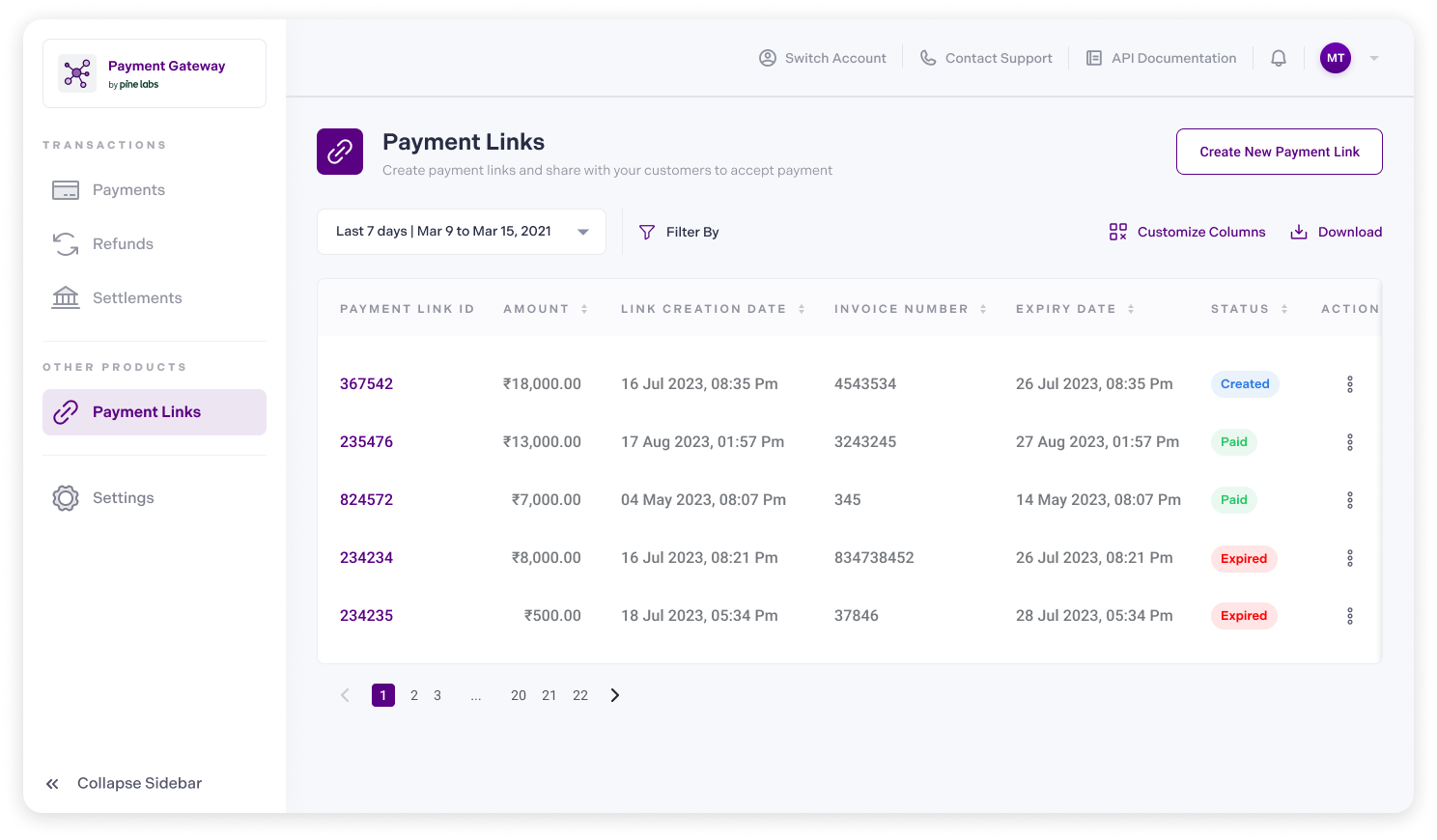
- Payment Link screen appears, enter the payment details.
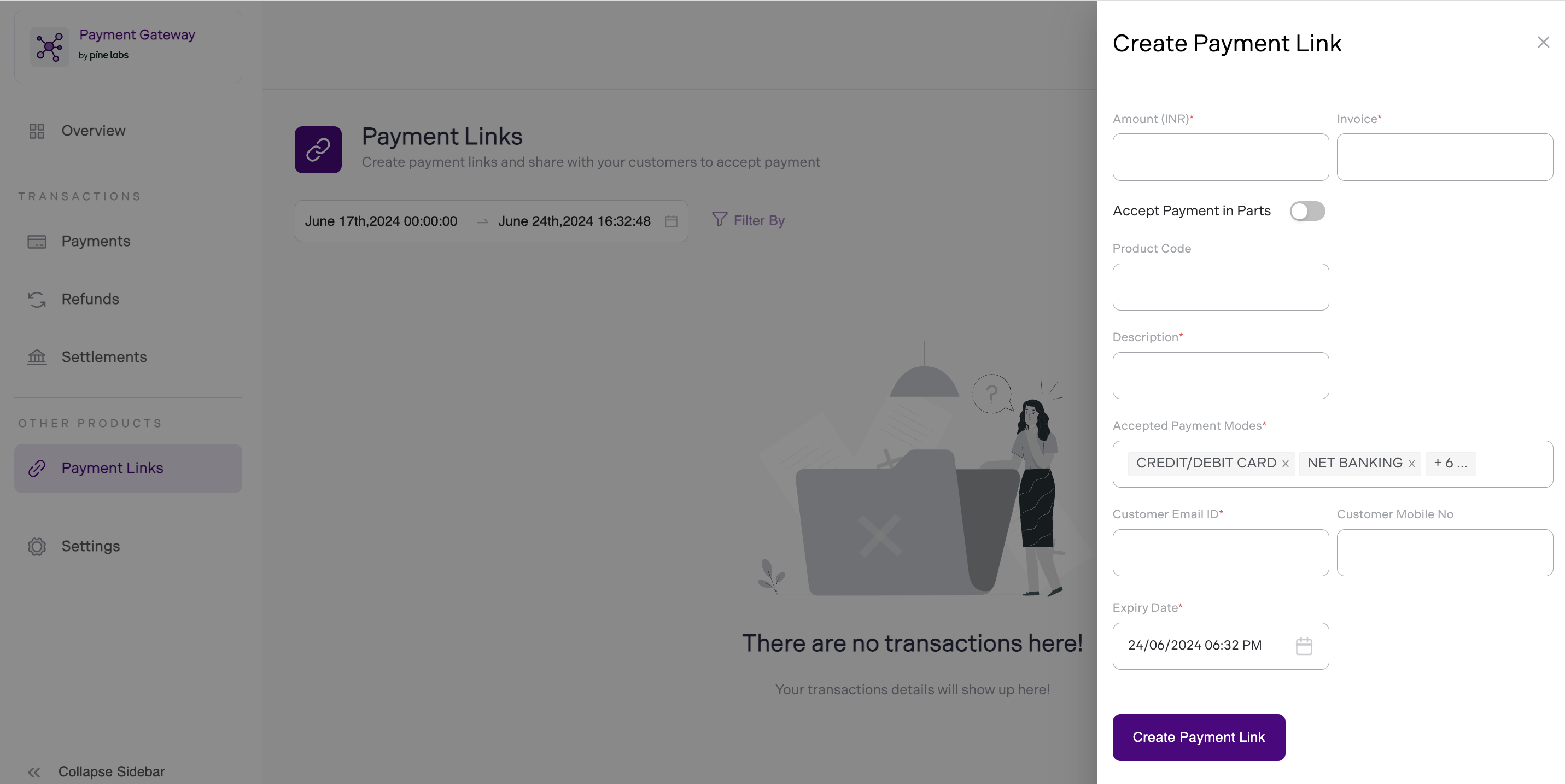
- Enter Payment details
Fill in the required fields to configure your payment link:
- Amount: Enter the payment amount for the transaction (e.g., ₹500 for a product or service).
- Description: Add a short description of the payment purpose (e.g., "Monthly Gym Subscription" or "Product Purchase").
- Product Code: Merchant product code (required if brand EMI enabled).
- Accepted Payment Modes: Select the payment methods you want to accept through the link, such as UPI, credit/debit cards, wallets, or others.
- Customer’s Email ID: Add the customer’s email address if you want to send them an automatic receipt or payment reminder.
- Customer Mobile No (Optional): Add the customer’s mobile number if you want to send them an automatic receipt or payment reminder.
- Expiry Date: Set an expiry date for the payment link, which will automatically deactivate the link after the specified date.
- Payment Link Settings: You may have the option to enable or disable features like Accept Payment in Parts (e.g., partial payments or installment payments) if your plan supports such options.
- Finally, click on Create Payment Link.
The payment link is created successfully and shared with your customers via email and SMS.
Note:Link Expiration: Set an expiration date for time-sensitive transactions to ensure that the payment link is only valid for a set period.
Handle Payments
Once the payment is successfully processed, verify the transaction on your Plural Dashboard, to check the status of the transaction.
To know the status of the payment you can use the below option.
- Webhook Notification: We send Webhook notifications on the successful payment or any changes to the payments object. Refer to our Webhooks documentation to learn more.
On Demand Settlements
On Demand Settlements
Learn about the Pine Labs Online On-Demand settlement process and how to manage your settlements efficiently.
On-Demand Settlement (ODS) puts cash flow control directly in your hands, enabling you to request captured funds anytime through your dashboard. With real-time processing, transparent fees, and instant notifications, you can manage liquidity efficiently and eliminate settlement delays.
Traditional settlement cycles, such as T+1 or T+2, often create cash flow constraints. ODS transforms these rigid cycles into a flexible, user-controlled process, allowing you to access your funds immediately, even on weekends, bank holidays, and non-working days. This ensures continuous cash flow without waiting for standard settlement cycles.
With Plura's On-Demand Settlement, you have the power to manage your finances on your terms.
Key Features
- On-Demand Settlement Requests
- You can request settlements through the Pine Labs Online Dashboard.
- ODS processes leftover transactions post the last payout.
- Available balance and fees are displayed before request confirmation.
- Real-Time Processing
- Payouts are completed within 1.5 hours of trigger.
- Settlement requests can be initiated daily between 9 AM - 9 PM.
- ODS batches are processed every hour, sweeping the last hour’s requests.
- Transparent Fee Structure
- ODS incurs a fee on top of Merchant Discount Rate (MDR).
- An additional Weekend Settlement Fee applies for holiday settlements.
- Smart Balance Management
- Real-time visibility of eligible balance.
- Automatic fee calculation before settlement confirmation.
- Configurable payout limits for each merchant.
- Comprehensive Tracking and Notifications
- Instant confirmation and settlement tracking details.
- Notifications via SMS/Email at key settlement milestones.
- Detailed settlement history available on the dashboard.
- Risk-Managed Security
- RBI-compliant pre-funding and fraud checks.
- MCC profiling and transaction limits ensure secure payouts.
Key Benefits
- Improve Liquidity: Access funds for urgent expenses or opportunities.
- Reduce Financial Stress: No more waiting for payouts.
- Boost Operational Agility: Align settlements with business needs.
Note:
- To enable the On-Demand Settlements feature, contact our support team.
How to Raise an ODS Request
-
Log in to the Pine Labs Online Dashboard
-
Check Available Balance
-
Navigate to the Settlements Section.
- In the left sidebar, under the TRANSACTIONS section, click on Settlements.
- This will open the Settlements Dashboard, where you can view all settlement details.
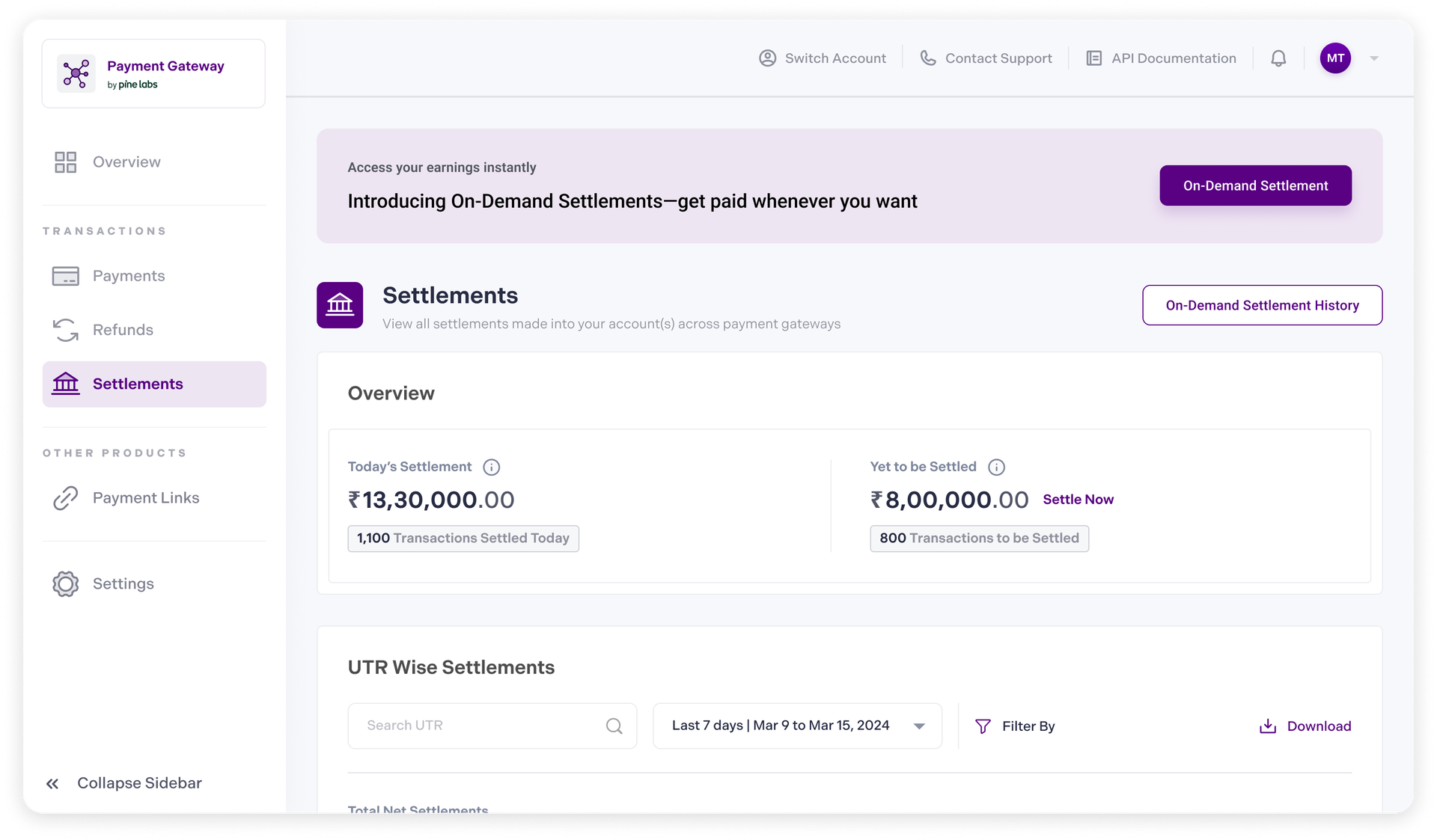
- View the eligible balance available for instant settlement.
-
-
On the Settlements Dashboard, select the On-Demand Settlement button to proceed with an instant settlement request.
-
Review Settlement Eligibility & Limits
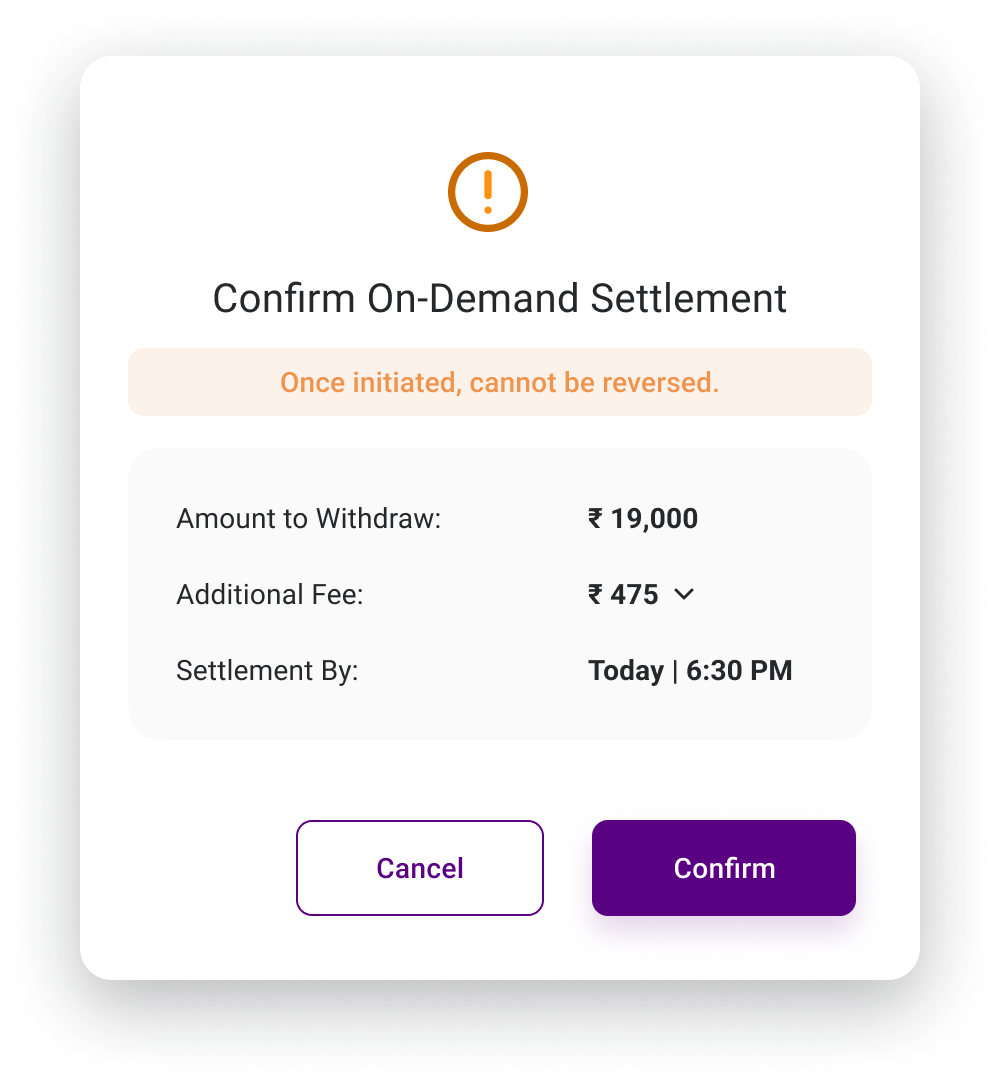
- Check the Available Balance for settlement (e.g., ₹19,000).
- Review the On-Demand Daily Limit (e.g., ₹2,00,000).
- Verify the Limit Used Today and the Remaining Limit for Today (e.g., ₹50,000 used, ₹1,50,000 available).
- Check Applicable Fees
- Review any additional charges for the settlement request (e.g., ₹475 fee for processing).
- Click View On-Demand Settlement Terms if needed.
- Confirm and Submit Request
- Once reviewed, click Continue to proceed with the settlement request.
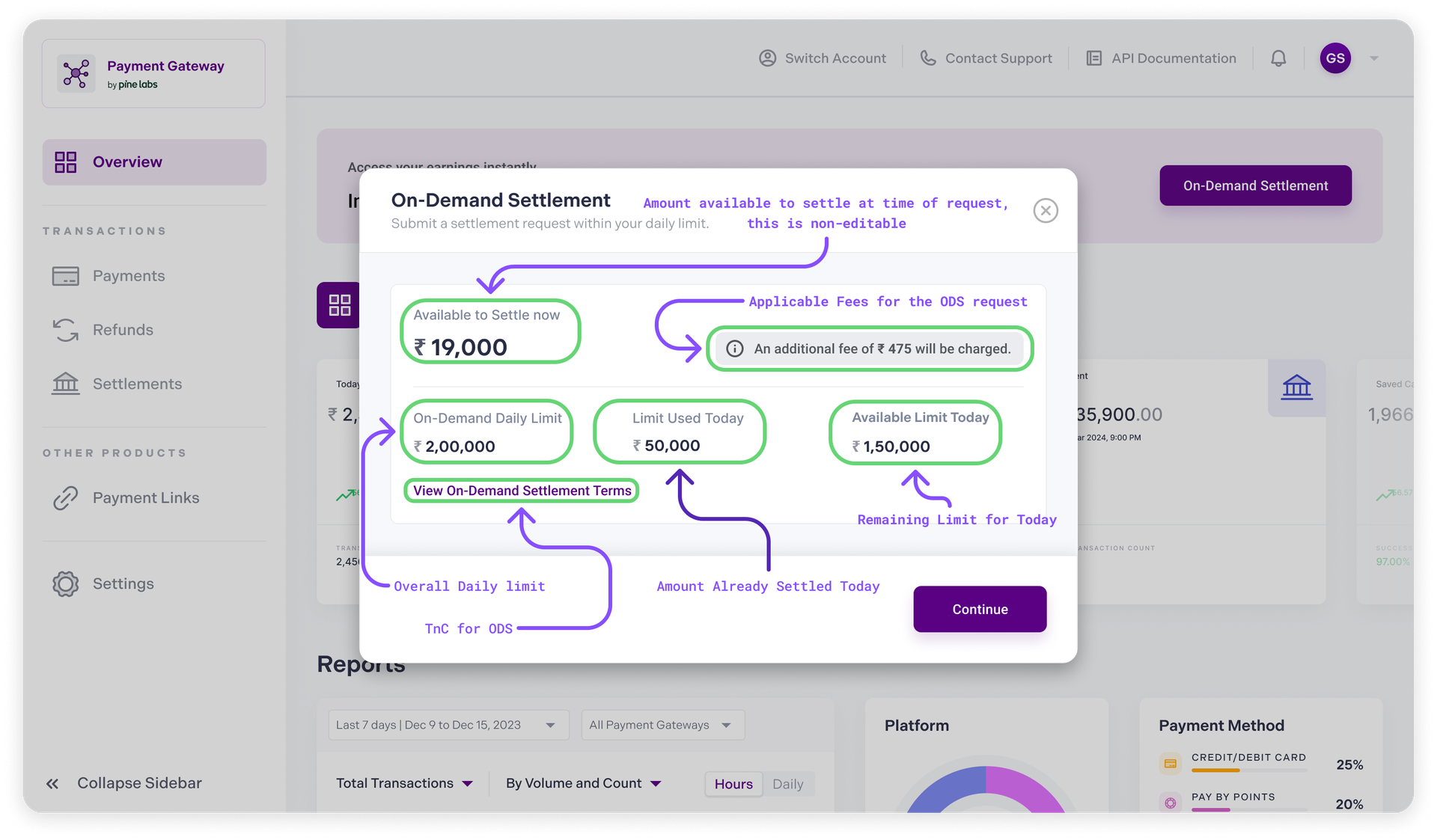
- Click on Confirm to proceed with the settlement request.
-
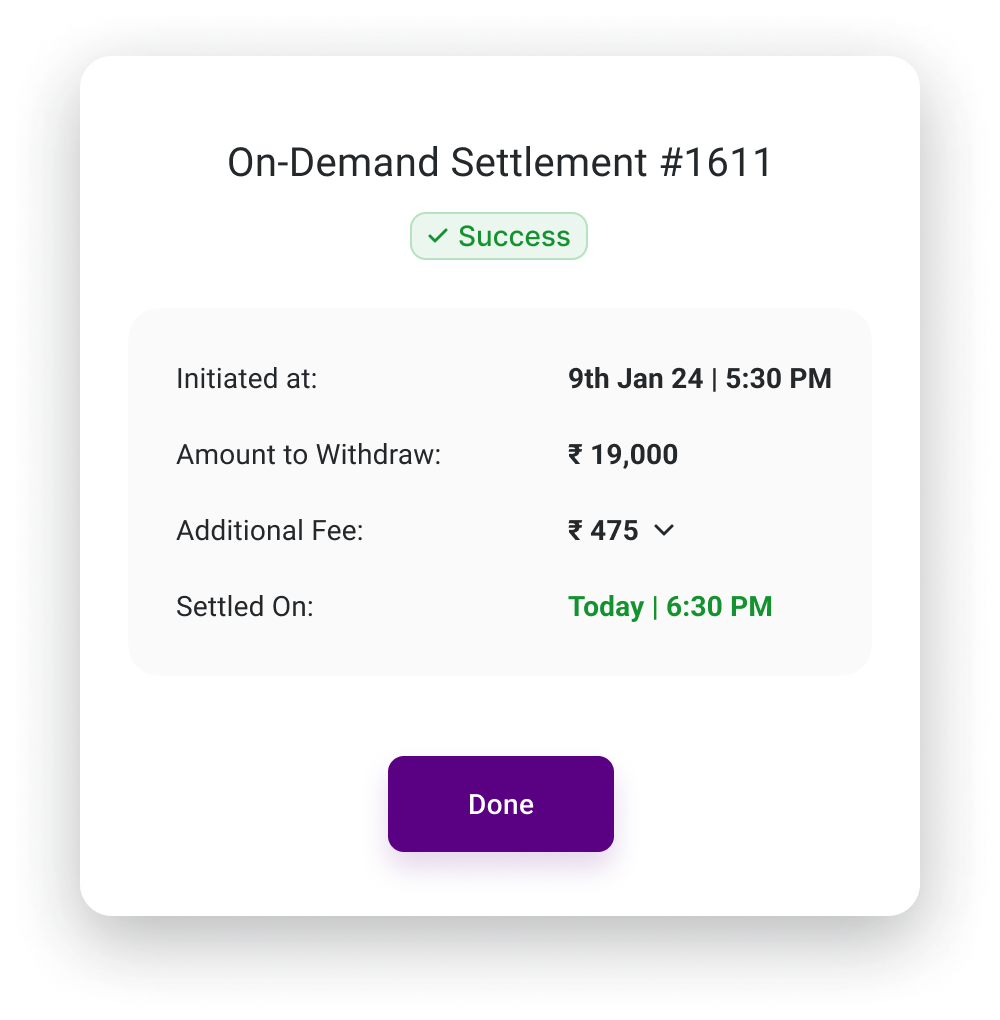
After submitting the request, you will receive a confirmation screen with settlement details.
-
Click Done to Complete the Process.
-
View Settlement History
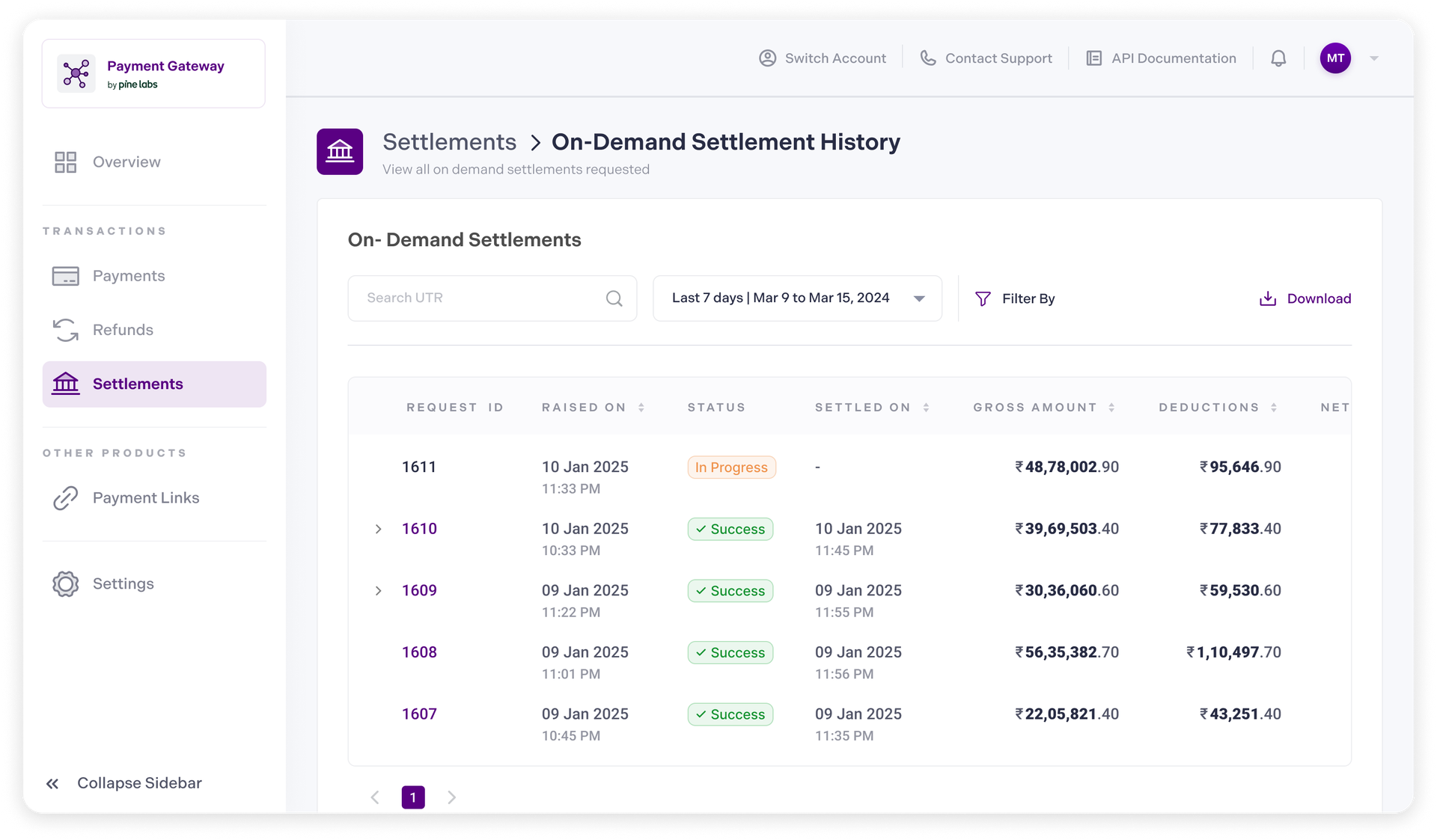
- Navigate to the Settlements section from the left sidebar.
- Click on On-Demand Settlement History to view all settlement requests.
-
Review Settlement Details
- Locate your Request ID in the list (e.g., 1611).
- Check the Status:
Success: The settlement is completed.
In Progress: The settlement is still being processed. - Verify the Raised On and Settled On timestamps.
- Review the Gross Amount, Deductions, and Net Settlement Amount for accuracy.
Native SDKs
Native SDKs
Learn how you can Integrate with Pine Labs Online Native SDKs and start accepting payments from your customers.
Our Native SDKs facilitate seamless payment processing within mobile applications. These SDKs include pre-built UI components, enabling businesses to integrate payments effortlessly while enhancing the user experience.
With Pine Labs Online SDKs, you can streamline payment integration using pre-configured code, APIs, comprehensive documentation, and debugging tools, ensuring a secure and efficient transaction process.
You can leverage our platform-specific SDKs to develop applications for various platforms, including:
Android Native SDK Integration Steps
Learn how you can start integrating with Pine Labs Online Android Native SDK.
The Android Native SDK integration involves the following steps below:
- [Prerequisite] Integrate APIs in Your Backend
- Installation
- Initialize SDK
- Handle Payments
- Manage Transactions
Note:
- Ensure you store your Client ID and Secret in your Backend securely.
- Integrate our APIs on your backend system.
- We strictly recommend not to call our APIs from the frontend.
- Failure to adhere to the above guidelines may result in legal implications. In such cases, you will be held responsible for any damage or loss arising from non-compliance.
1. [Prerequisite] Integrate APIs in Your Backend
Start a payment by triggering the payment flow. To start a payment, follow the below steps:
1.1. Generate Auth Token
Integrate our Generate Token API in your backend servers to generate the auth token. Use the token generated to authenticate Pine Labs Online APIs.
Below are the sample requests and response for the Generate Token API.
curl --location 'https://pluraluat.v2.pinepg.in/api/auth/v1/token' \
--header 'accept: application/json' \
--header 'content-type: application/json' \
--header 'Request-Timestamp: 2024-07-09T07:57:08.022Z' \
--header 'Request-ID: c17ce30f-f88e-4f81-ada1-c3b4909ed235' \
--data '
{
  "client_id": "a17ce30e-f88e-4f81-ada1-c3b4909ed232",
  "client_secret": "fgwei7egyhuggwp39w8rh",
  "grant_type": "client_credentials"
}
'
curl --location 'https://api.pluralpay.in/api/auth/v1/token' \
--header 'accept: application/json' \
--header 'content-type: application/json' \
--header 'Request-Timestamp: 2024-07-09T07:57:08.022Z' \
--header 'Request-ID: c17ce30f-f88e-4f81-ada1-c3b4909ed235' \
--data '
{
"client_id": "a17ce30e-f88e-4f81-ada1-c3b4909ed232",
"client_secret": "fgwei7egyhuggwp39w8rh",
"grant_type": "client_credentials"
}
'{
"access_token": "eyJhbGciOiJIUzI1NiIsInR5cCI6IkpXVCJ9.eyJzdWIiOiIxMjM0NTY3ODkwIiwibmFtZSI6IkpvaG4gRG9lIiwiaWF0IjoxNTE2MjM5MDIyfQ.SflKxwRJSMeKKF2QT4fwpMeJf36POk6yJV_adQssw5c",
"expires_in": 3600
}Click here for request and response parameter information.
The table below lists the request parameters of our Generate Token API.
| Parameter | Type | Description |
|---|---|---|
| client_id required | string |
Unique client identifier in the Pine Labs Online database. Example: a17ce30e-f88e-4f81-ada1-c3b4909ed232Note: The Onboarding team has provided you with this information as part of the onboarding process. |
| client_secret required | string |
Unique client secret key provided while onboarding. Example: fgwei7egyhuggwp39w8rhNote: The Onboarding team has provided you with this information as part of the onboarding process. |
| grant_type required | string |
The grant type to generate an access token. Accepted value: client_credentials
|
The table below lists the response parameters of our Generate Token API.
| Parameter | Type | Description |
|---|---|---|
| access_token | string |
The access token generated by the system. • Minimum length: 1 character. • Maximum length: 8192 characters. Example: eyJhbGciOiJIUzI1NiIsInNote: Use this token in the authorization headers to authenticate Pine Labs Online APIs. |
| expires_at | string |
Access duration timestamp. Example: 2024-06-28T13:26:06.909140Z
|
Refer to our Generate Token API documentation to learn more.
1.2. Create Hosted Checkout
Use this API to create a hosted checkout, for authentication use the generated access token in the headers of the API request.
Below are the sample requests and response for a Create Hosted Checkout API.
curl --location 'https://pluraluat.v2.pinepg.in/api/checkout/v1/orders' \
--header 'Authorization: Bearer eyJhbGciOiJIUzI1NiIsInR5cCI6IkpXVCJ9.eyJzdWIiOiIxMjM0NTY3ODkwIiwibmFtZSI6IkpvaG4gRG9lIiwiaWF0IjoxNTE2MjM5MDIyfQ.SflKxwRJSMeKKF2QT4fwpMeJf36POk6yJV_adQssw5c' \
--header 'Content-Type: application/json' \
--header 'Request-ID: c17ce30f-f88e-4f81-ada1-c3b4909ed235' \
--header 'Request-Timestamp: 2024-07-09T07:57:08.022Z' \
--header 'accept: application/json' \
--data '
{
  "merchant_order_reference": "f4c45dbd-6eba-453d-b317-158c6ba12825",
  "order_amount": {
    "value": 500,
    "currency": "INR"
  },
  "purchase_details": {
    "customer": {
      "email_id": "[email protected]",
      "first_name": "joe",
      "last_name": "kumar",
      "customer_id": "192212",
      "mobile_number": "192192883",
			"country_code": "91",
      "billing_address": {
        "address1": "10 Downing Street Westminster London",
        "address2": "Oxford Street Westminster London",
        "address3": "Baker Street Westminster London",
        "pincode": "51524036",
        "city": "Westminster",
        "state": "Westminster",
        "country": "London",,
        "full_name": "Kevin Bob",
        "adddress_type": "Home",
        "address_category": "billing"
      },
      "shipping_address": {
        "address1": "10 Downing Street Westminster London",
        "address2": "Oxford Street Westminster London",
        "address3": "Baker Street Westminster London",
        "pincode": "51524036",
        "city": "Westminster",
        "state": "Westminster",
        "country": "London",,
        "full_name": "Kevin Bob",
        "adddress_type": "Home",
        "address_category": "shipping"
      }
    },
    "merchant_metadata": {
      "key1": "value1",
      "key2": "value2"
    },
    "integration_mode": "SDK"
  }
}
'
curl --location 'https://api.pluralpay.in/api/checkout/v1/orders' \
--header 'Authorization: Bearer eyJhbGciOiJIUzI1NiIsInR5cCI6IkpXVCJ9.eyJzdWIiOiIxMjM0NTY3ODkwIiwibmFtZSI6IkpvaG4gRG9lIiwiaWF0IjoxNTE2MjM5MDIyfQ.SflKxwRJSMeKKF2QT4fwpMeJf36POk6yJV_adQssw5c' \
--header 'Content-Type: application/json' \
--header 'Request-ID: c17ce30f-f88e-4f81-ada1-c3b4909ed235' \
--header 'Request-Timestamp: 2024-07-09T07:57:08.022Z' \
--header 'accept: application/json' \
--data '
{
"merchant_order_reference": "f4c45dbd-6eba-453d-b317-158c6ba12825",
"order_amount": {
"value": 500,
"currency": "INR"
},
"purchase_details": {
"customer": {
"email_id": "[email protected]",
"first_name": "joe",
"last_name": "kumar",
"customer_id": "192212",
"mobile_number": "192192883",
"country_code": "91",
"billing_address": {
"address1": "10 Downing Street Westminster London",
"address2": "Oxford Street Westminster London",
"address3": "Baker Street Westminster London",
"pincode": "51524036",
"city": "Westminster",
"state": "Westminster",
"country": "London",,
"full_name": "Kevin Bob",
"adddress_type": "Home",
"address_category": "billing"
},
"shipping_address": {
"address1": "10 Downing Street Westminster London",
"address2": "Oxford Street Westminster London",
"address3": "Baker Street Westminster London",
"pincode": "51524036",
"city": "Westminster",
"state": "Westminster",
"country": "London",,
"full_name": "Kevin Bob",
"adddress_type": "Home",
"address_category": "shipping"
}
},
"merchant_metadata": {
"key1": "value1",
"key2": "value2"
},
"integration_mode": "SDK"
}
}
'{
"token": "REDIRECT TOKEN",
"order_id": "ORDER ID",
"redirect_url": "https://api.pluralonline.com/api/v3/checkout-bff/redirect/checkout?token=REDIRECT TOKEN",
"response_code": 200,
"response_message": "Order Creation Successful."
}Click here for request and response parameter information.
The table below lists the request parameters of our Create Checkout Link API.
| Parameter | Type | Description |
|---|---|---|
| merchant_order_reference required | string |
Enter a unique identifier for the order request.
1234567890Supported characters:
|
| order_amount required | object |
An object that contains the transaction amount details. Learn more about the order_amount child object.
|
pre_auth | boolean |
The pre-authorization type. Possible values:
|
| allowed_payment_methods | array of strings |
The type of payment methods you want to offer customers. Accepted values:
Note: Ensure it is configured for you. |
| notes | string |
Note to show against an order. Example: Order1
|
| callback_url | string |
Use this URL to redirect your customers to specific success or failure pages based on the order or product details. Example: https://sample-callback-url |
| failure_callback_url | string |
Use this URL to redirect your customers to specific failure pages based on the order or product details. Example: https://sample-failure-callback-url |
| purchase_details | object |
An object that contains purchase details. Learn more about the purchase_details child object.
|
| cart_details | object |
An object that contains cart details. Learn more about the cart_details child object.
|
Order Amount [Child Object]
The table below lists the various parameters in the order_amount child object. This object is part of the Create Checkout Link request object.
| Parameter | Type | Description |
|---|---|---|
| value required | integer |
Transaction amount in Paisa.
1000
|
| currency required | string |
Type of currency. Example: INR
|
Purchase Details [Child Object]
The table below lists the various parameters in the purchase_details child object. This object is part of the Create Checkout Link request object.
| Parameter | Type | Description |
|---|---|---|
| customer | object |
An object that contains the customer details. Learn more about the customer child object. |
| merchant_metadata | object |
An object of key-value pair that can be used to store additional information. Learn more about the merchant_metadata child object. |
Customer [Child Object]
The table below lists the various parameters in the customer child object. This is part of the purchase_details object.
| Parameter | Type | Description |
|---|---|---|
| email_id | string |
Customer's email address.
[email protected] |
| first_name | string |
Customer's first name.
Kevin |
| last_name | string |
Customer's last name.
Bob |
| customer_id | string |
Unique identifier of the customer in the Pine Labs Online database.
123456 |
| mobile_number | string |
Customer's mobile number.
9876543210 |
| country_code | string |
Country code of the registered mobile number.
91Note: If the country code is not provided, it defaults to 91. |
| billing_address | object |
An object that contains the details of the billing address. Learn more about our billing_address child object. |
| shipping_address | object |
An object that contains the shipping address details. Learn more about our shipping_address child object. |
Billing Address [Child Object]
The table below lists the various parameters in the billing_address child object. This is part of the customer object.
| Parameter | Type | Description |
|---|---|---|
| address1 | string | Customer's billing address1.
10 Downing Street Westminster London |
| address2 | string | Customer's billing address2.
Oxford Street Westminster London |
| address3 | string | Customer's billing address3.
Baker Street Westminster London |
| pincode | string | Pincode of the billing address.
51524036 |
| city | string | City of the billing address.
Westminster |
| state | string | State of the billing address.
Westminster |
| country | string | Country of the billing address.
London |
| full_name | string | Full name of the customer.
Doctor Strange |
| address_type | string | Type of the billing address. Example: HomeAccepted values:
|
| address_category | string | Address category. Example: Billing |
Shipping Address [Child Object]
The table below lists the various parameters in the shipping_address child object. This is part of the customer object.
| Parameter | Type | Description |
|---|---|---|
| address1 | string | Customer's shipping address1.
10 Downing Street Westminster London |
| address2 | string | Customer's shipping address2.
Oxford Street Westminster London |
| address3 | string | Customer's shipping address3.
Baker Street Westminster London |
| pincode | string | Pincode of the shipping address.
51524036 |
| city | string | City of the shipping address.
Westminster |
| state | string | State of the shipping address.
Westminster |
| country | string | Country of the shipping address.
London |
| full_name | string | Full name of the customer.
Doctor Strange |
| address_type | string | Type of the shipping address. Example: HomeAccepted values:
|
| address_category | string | Address category. Example: Shipping |
Merchant Metadata [Child Object]
The table below lists the various parameters in the merchant_metadata child object. This object is part of the purchase_details child object.
| Parameter | Type | Description |
|---|---|---|
| express_checkout_allowed_action | string |
Access allowed during the express checkout. Accepted values:
|
Cart Details [Child Object]
The table below lists the various parameters in the cart_details child object. This object is part of the Create Checkout Link request object.
| Parameter | Type | Description |
|---|---|---|
| cart_items | array of objects |
An object that contains the cart item details. Learn more about the cart_itmes child object. |
Cart Items [Child Object]
The table below lists the various parameters in the cart_items child object. This object is part of the cart_details child object.
| Parameter | Type | Description |
|---|---|---|
| item_id | string |
Unique identifier of the item. Example: cart_id_1
|
| item_name | string |
Name of the item. Example: T Shirt
|
| item_description | string |
Description corresponding to the item. Example: Shopping on Diwali Sale
|
| item_image_url | string |
Image URL of the item. Example: https://chriscross.in/cdn/shop/files/95_800x.jpgNote: To ensure better resolution and optimal display on the checkout, please provide the image in 24x24 dimensions.
|
| item_original_unit_price | string |
Original price of the item. Example: 199
|
| item_discounted_unit_price | string |
Discount price of the item. Example: 49
|
| item_quantity | string |
Number of items purchased. Example: 2
|
| item_currency | string |
Indicates the currency type for the purchase of the item. Example: INR
|
The table below lists the various parameters returned in the Generate Checkout Link response objects.
| Parameter | Type | Description | token | string |
Token generated by our system for Pine Labs Online Hosted Checkout. Example: eyJhbGciOiJIUzI1NiIsInR5cCI6IkpXVCJ9.eyJzdWIiOiIxMjM0NTY3ODkwIiwibmFtZSI6IkpvaG4gRG9lIiwiaWF0IjoxNTE2MjM5MDIyfQ.SflKxwRJSMeKKF2QT4fwpMeJf36POk6yJV_adQssw5c
|
|---|---|---|
| order_id | string |
Unique identifier of the order in the Pine Labs Online database. Example: v1-5757575757-aa-hU1rUd |
| redirect_url | string |
The checkout link generated on our system. Example: https://api.pluralonline.com/api/v3/checkout-bff/redirect/checkout?token=< |
| response_code | integer |
Response code of the request. Example: 200 |
| response_message | string |
Corresponding message to the response code. Example: Order Creation Successful
|
Refer to our Create Hosted Checkout API documentation to learn more.
2. Installation
To include the Pine Labs Online Android SDK in your project, follow these steps:
2.1. Configure Build Setting
- Navigate to the build.gradle file of your app module (usually located at app/build.gradle).
- Include the below dependencies in your
build.gradlefile.
dependencies {
  implementation 'com.github.plural-pinelabs:Plural_Android_SDK:1.2'
}
dependencies {
implementation 'com.github.plural-pinelabs:Plural_Android_SDK:9.5'
}- After adding the necessary dependencies to your
build.gradlefile, click on "Sync Now" in the notification bar to sync your project with the updated Gradle files. - Next, include the following code in your
AndroidManifest.xmlfile to obtain the required static permissions.
<uses-permission android:name="android.permission.INTERNET"/>
<uses-permission android:name="android.permission.ACCESS_NETWORK_STATE"/>
3. Initialize SDK
To initialise the Pine Labs Online SDK, follow these steps:
- Create an
PluralSDKManagerobject: Initialise an instance of PluralSDKManager as shown below in your project:
val sdkManager = PluralSDKManager()- Invoke startPayment: Use the
sdkManagerobject to call thestartPaymentmethod, which is defined in the Android SDK.
sdkManager.startPayment(context, token, PaymentResultCallBack)Parameters Used in a Payment
context: Refers to the activity context where this method is called.
token: The token generated from the Create Hosted Checkout API response.
PaymentResultCallBack: PaymentResultCallBack is a constant that handles callback messages sent back to your Android app.
4. Handle Payments
You need to implement call-back methods to handle your payment responses. This will provide the payment status and reason for transaction failures. Based on the reasons for failures, handling can be built at your end. Transaction callbacks can be listened to via overriding methods of PaymentResultCallBack.
onErrorOccured: This method is called when SDK is unable to load the payment page.
onSuccessOccured: This method is called when transaction is complete. Transaction can be failed or success.
onCancelTransaction: This method is called when the user cancels the transaction.
override fun onErrorOccured(orderId: String?, code: String?, message: String?) {
    Toast.makeText(context: this, text: "Error occurred ->$message", Toast.LENGTH_SHORT).show()
}

override fun onSuccessOccured(orderId: String?) {Toast.makeText(context: this, text: "Payment Successful ${orderId}",Toast.LENGTH_SHORT).show()
}

override fun onCancelTransaction() {Toast.makeText(this text: "Cancel transaction", Toast.LENGTH_SHORT).show()}()
}
5. Manage Transactions
To get the status of the transaction made from your application, you can use our Fetch APIs to know the real time status.
5.1. Get Order by Order ID
Use this API to know the real time status of the transaction made on your application. Refer to our Get Order by Order ID API documentation to learn more.
5.2. Webhooks
You can configure the webhook events to know the status of your transactions. Refer to our Webhooks documentation to learn more.
Infinity Checkout Native SDK Integration Steps
Learn how you can start integrating with Pine Labs Online Android Native SDK.
The Android Native SDK integration involves the following steps below:
Note:
- Ensure you store your
client_idandclient_secretin your Backend securely.- Integrate our APIs on your backend system.
- We strictly recommend not to call our APIs from the frontend.
- Failure to adhere to the above guidelines may result in legal implications. In such cases, you will be held responsible for any damage or loss arising from non-compliance.
1. [Prerequisite] Integrate APIs in Your Backend
Start a payment by triggering the payment flow. To start a payment, follow the below steps:
1.1. Generate Auth Token
Integrate our Generate Token API in your backend servers to generate the auth token. Use the token generated to authenticate Pine Labs Online APIs.
Below are the sample requests and response for the Generate Token API.
curl --location 'https://pluraluat.v2.pinepg.in/api/auth/v1/token' \
--header 'accept: application/json' \
--header 'content-type: application/json' \
--header 'Request-Timestamp: 2024-07-09T07:57:08.022Z' \
--header 'Request-ID: c17ce30f-f88e-4f81-ada1-c3b4909ed235' \
--data '
{
  "client_id": "a17ce30e-f88e-4f81-ada1-c3b4909ed232",
  "client_secret": "fgwei7egyhuggwp39w8rh",
  "grant_type": "client_credentials"
}
'
curl --location 'https://api.pluralpay.in/api/auth/v1/token' \
--header 'accept: application/json' \
--header 'content-type: application/json' \
--header 'Request-Timestamp: 2024-07-09T07:57:08.022Z' \
--header 'Request-ID: c17ce30f-f88e-4f81-ada1-c3b4909ed235' \
--data '
{
"client_id": "a17ce30e-f88e-4f81-ada1-c3b4909ed232",
"client_secret": "fgwei7egyhuggwp39w8rh",
"grant_type": "client_credentials"
}
'{
"access_token": "eyJhbGciOiJIUzI1NiIsInR5cCI6IkpXVCJ9.eyJzdWIiOiIxMjM0NTY3ODkwIiwibmFtZSI6IkpvaG4gRG9lIiwiaWF0IjoxNTE2MjM5MDIyfQ.SflKxwRJSMeKKF2QT4fwpMeJf36POk6yJV_adQssw5c",
"expires_in": 3600
}Click here for request and response parameter information.
The table below lists the request parameters of our Generate Token API.
| Parameter | Type | Description |
|---|---|---|
| client_id required | string |
Unique client identifier in the Pine Labs Online database. Example: a17ce30e-f88e-4f81-ada1-c3b4909ed232Note: The Onboarding team has provided you with this information as part of the onboarding process. |
| client_secret required | string |
Unique client secret key provided while onboarding. Example: fgwei7egyhuggwp39w8rhNote: The Onboarding team has provided you with this information as part of the onboarding process. |
| grant_type required | string |
The grant type to generate an access token. Accepted value: client_credentials
|
The table below lists the response parameters of our Generate Token API.
| Parameter | Type | Description |
|---|---|---|
| access_token | string |
The access token generated by the system. • Minimum length: 1 character. • Maximum length: 8192 characters. Example: eyJhbGciOiJIUzI1NiIsInNote: Use this token in the authorization headers to authenticate Pine Labs Online APIs. |
| expires_at | string |
Access duration timestamp. Example: 2024-06-28T13:26:06.909140Z
|
Refer to our Generate Token API documentation to learn more.
1.2. Generate Checkout Link
Use this API to create a infinity checkout link, for authentication use the generated access token in the headers of the API request.
Below are the sample requests and response for a Generate Checkout Link API.
curl --location 'https://pluraluat.v2.pinepg.in/api/checkout/v1/orders' \
--header 'Authorization: Bearer eyJhbGciOiJIUzI1NiIsInR5cCI6IkpXVCJ9.eyJzdWIiOiIxMjM0NTY3ODkwIiwibmFtZSI6IkpvaG4gRG9lIiwiaWF0IjoxNTE2MjM5MDIyfQ.SflKxwRJSMeKKF2QT4fwpMeJf36POk6yJV_adQssw5c' \
--header 'Content-Type: application/json' \
--header 'Request-ID: c17ce30f-f88e-4f81-ada1-c3b4909ed235' \
--header 'Request-Timestamp: 2024-07-09T07:57:08.022Z' \
--header 'accept: application/json' \
--data '
{
  "merchant_order_reference": "112345",
  "order_amount": {
    "value": 1100,
    "currency": "INR"
  },
  "integration_mode": "REDIRECT",
  "pre_auth": false,
  "allowed_payment_methods": [
    "CARD",
    "UPI",
    "NETBANKING",
    "POINTS",
    "WALLET"
  ],
  "notes": "order1",
  "callback_url": "https://sample-callback-url",
  "failure_callback_url": "https://sample-failure-callback-url",
  "purchase_details": {
    "customer": {
      "email_id": "[email protected]",
      "first_name": "Kevin",
      "last_name": "Bob",
      "customer_id": "123456",
      "mobile_number": "9876543210",
      "country_code": "91",
      "billing_address": {
        "address1": "10 Downing Street Westminster London",
        "address2": "Oxford Street Westminster London",
        "address3": "Baker Street Westminster London",
        "pincode": "51524036",
        "city": "Westminster",
        "state": "Westminster",
        "country": "London",
        "full_name": "harsh kumar",
        "address_type": "HOME/WORK/OTHER",
        "address_category": "BILLING"
      },
      "shipping_address": {
        "address1": "10 Downing Street Westminster London",
        "address2": "Oxford Street Westminster London",
        "address3": "Baker Street Westminster London",
        "pincode": "51524036",
        "city": "Westminster",
        "state": "Westminster",
        "country": "London",
        "full_name": "harsh kumar",
        "address_type": "HOME/WORK/OTHER",
        "address_category": "BILLING"
      }
    },
    "merchant_metadata": {
      "express_checkout_enabled": "TRUE",
      "express_checkout_allowed_action": "checkoutCollectAddress",
      "key1": "DD",
      "key2": "XOF"
    }
  },
  "cart_details": {
    "cart_items": [
      {
        "item_id": "cart_id_1",
        "item_name": "T Shirt",
        "item_description": "Test Description",
        "item_details_url": "https://chriscross.in/cdn/shop/files/95_800x.jpg",
        "item_image_url": "https://chriscross.in/cdn/shop/files/95_800x.jpg",
        "item_original_unit_price": 1,
        "item_discounted_unit_price": 1,
        "item_quantity": 1,
        "item_currency": "INR"
      }
    ]
  }
}
'
curl --location 'https://api.pluralpay.in/api/checkout/v1/orders' \
--header 'Authorization: Bearer eyJhbGciOiJIUzI1NiIsInR5cCI6IkpXVCJ9.eyJzdWIiOiIxMjM0NTY3ODkwIiwibmFtZSI6IkpvaG4gRG9lIiwiaWF0IjoxNTE2MjM5MDIyfQ.SflKxwRJSMeKKF2QT4fwpMeJf36POk6yJV_adQssw5c' \
--header 'Content-Type: application/json' \
--header 'Request-ID: c17ce30f-f88e-4f81-ada1-c3b4909ed235' \
--header 'Request-Timestamp: 2024-07-09T07:57:08.022Z' \
--header 'accept: application/json' \
--data '
{
"merchant_order_reference": "112345",
"order_amount": {
"value": 1100,
"currency": "INR"
},
"integration_mode": "REDIRECT",
"pre_auth": false,
"allowed_payment_methods": [
"CARD",
"UPI",
"NETBANKING",
"POINTS",
"WALLET"
],
"notes": "order1",
"callback_url": "https://sample-callback-url",
"failure_callback_url": "https://sample-failure-callback-url",
"purchase_details": {
"customer": {
"email_id": "[email protected]",
"first_name": "Kevin",
"last_name": "Bob",
"customer_id": "123456",
"mobile_number": "9876543210",
"country_code": "91",
"billing_address": {
"address1": "10 Downing Street Westminster London",
"address2": "Oxford Street Westminster London",
"address3": "Baker Street Westminster London",
"pincode": "51524036",
"city": "Westminster",
"state": "Westminster",
"country": "London",
"full_name": "harsh kumar",
"address_type": "HOME/WORK/OTHER",
"address_category": "BILLING"
},
"shipping_address": {
"address1": "10 Downing Street Westminster London",
"address2": "Oxford Street Westminster London",
"address3": "Baker Street Westminster London",
"pincode": "51524036",
"city": "Westminster",
"state": "Westminster",
"country": "London",
"full_name": "harsh kumar",
"address_type": "HOME/WORK/OTHER",
"address_category": "BILLING"
}
},
"merchant_metadata": {
"express_checkout_enabled": "TRUE",
"express_checkout_allowed_action": "checkoutCollectAddress",
"key1": "DD",
"key2": "XOF"
}
},
"cart_details": {
"cart_items": [
{
"item_id": "cart_id_1",
"item_name": "T Shirt",
"item_description": "Test Description",
"item_details_url": "https://chriscross.in/cdn/shop/files/95_800x.jpg",
"item_image_url": "https://chriscross.in/cdn/shop/files/95_800x.jpg",
"item_original_unit_price": 1,
"item_discounted_unit_price": 1,
"item_quantity": 1,
"item_currency": "INR"
}
]
}
}
'{
"token": "REDIRECT TOKEN",
"order_id": "ORDER ID",
"redirect_url": "https://api.pluralonline.com/api/v3/checkout-bff/redirect/checkout?token=REDIRECT TOKEN",
"response_code": 200,
"response_message": "Order Creation Successful."
}Click here for request and response parameter information.
The table below lists the request parameters of our Create Checkout Link API.
| Parameter | Type | Description |
|---|---|---|
| merchant_order_reference required | string |
Enter a unique identifier for the order request.
1234567890Supported characters:
|
| order_amount required | object |
An object that contains the transaction amount details. Learn more about the order_amount child object.
|
pre_auth | boolean |
The pre-authorization type. Possible values:
|
| allowed_payment_methods | array of strings |
The type of payment methods you want to offer customers. Accepted values:
Note: Ensure it is configured for you. |
| notes | string |
Note to show against an order. Example: Order1
|
| callback_url | string |
Use this URL to redirect your customers to specific success or failure pages based on the order or product details. Example: https://sample-callback-url |
| failure_callback_url | string |
Use this URL to redirect your customers to specific failure pages based on the order or product details. Example: https://sample-failure-callback-url |
| purchase_details | object |
An object that contains purchase details. Learn more about the purchase_details child object.
|
| cart_details | object |
An object that contains cart details. Learn more about the cart_details child object.
|
Order Amount [Child Object]
The table below lists the various parameters in the order_amount child object. This object is part of the Create Checkout Link request object.
| Parameter | Type | Description |
|---|---|---|
| value required | integer |
Transaction amount in Paisa.
1000
|
| currency required | string |
Type of currency. Example: INR
|
Purchase Details [Child Object]
The table below lists the various parameters in the purchase_details child object. This object is part of the Create Checkout Link request object.
| Parameter | Type | Description |
|---|---|---|
| customer | object |
An object that contains the customer details. Learn more about the customer child object. |
| merchant_metadata | object |
An object of key-value pair that can be used to store additional information. Learn more about the merchant_metadata child object. |
Customer [Child Object]
The table below lists the various parameters in the customer child object. This is part of the purchase_details object.
| Parameter | Type | Description |
|---|---|---|
| email_id | string |
Customer's email address.
[email protected] |
| first_name | string |
Customer's first name.
Kevin |
| last_name | string |
Customer's last name.
Bob |
| customer_id | string |
Unique identifier of the customer in the Pine Labs Online database.
123456 |
| mobile_number | string |
Customer's mobile number.
9876543210 |
| country_code | string |
Country code of the registered mobile number.
91Note: If the country code is not provided, it defaults to 91. |
| billing_address | object |
An object that contains the details of the billing address. Learn more about our billing_address child object. |
| shipping_address | object |
An object that contains the shipping address details. Learn more about our shipping_address child object. |
Billing Address [Child Object]
The table below lists the various parameters in the billing_address child object. This is part of the customer object.
| Parameter | Type | Description |
|---|---|---|
| address1 | string | Customer's billing address1.
10 Downing Street Westminster London |
| address2 | string | Customer's billing address2.
Oxford Street Westminster London |
| address3 | string | Customer's billing address3.
Baker Street Westminster London |
| pincode | string | Pincode of the billing address.
51524036 |
| city | string | City of the billing address.
Westminster |
| state | string | State of the billing address.
Westminster |
| country | string | Country of the billing address.
London |
| full_name | string | Full name of the customer.
Doctor Strange |
| address_type | string | Type of the billing address. Example: HomeAccepted values:
|
| address_category | string | Address category. Example: Billing |
Shipping Address [Child Object]
The table below lists the various parameters in the shipping_address child object. This is part of the customer object.
| Parameter | Type | Description |
|---|---|---|
| address1 | string | Customer's shipping address1.
10 Downing Street Westminster London |
| address2 | string | Customer's shipping address2.
Oxford Street Westminster London |
| address3 | string | Customer's shipping address3.
Baker Street Westminster London |
| pincode | string | Pincode of the shipping address.
51524036 |
| city | string | City of the shipping address.
Westminster |
| state | string | State of the shipping address.
Westminster |
| country | string | Country of the shipping address.
London |
| full_name | string | Full name of the customer.
Doctor Strange |
| address_type | string | Type of the shipping address. Example: HomeAccepted values:
|
| address_category | string | Address category. Example: Shipping |
Merchant Metadata [Child Object]
The table below lists the various parameters in the merchant_metadata child object. This object is part of the purchase_details child object.
| Parameter | Type | Description |
|---|---|---|
| express_checkout_allowed_action | string |
Access allowed during the express checkout. Accepted values:
|
Cart Details [Child Object]
The table below lists the various parameters in the cart_details child object. This object is part of the Create Checkout Link request object.
| Parameter | Type | Description |
|---|---|---|
| cart_items | array of objects |
An object that contains the cart item details. Learn more about the cart_itmes child object. |
Cart Items [Child Object]
The table below lists the various parameters in the cart_items child object. This object is part of the cart_details child object.
| Parameter | Type | Description |
|---|---|---|
| item_id | string |
Unique identifier of the item. Example: cart_id_1
|
| item_name | string |
Name of the item. Example: T Shirt
|
| item_description | string |
Description corresponding to the item. Example: Shopping on Diwali Sale
|
| item_image_url | string |
Image URL of the item. Example: https://chriscross.in/cdn/shop/files/95_800x.jpgNote: To ensure better resolution and optimal display on the checkout, please provide the image in 24x24 dimensions.
|
| item_original_unit_price | string |
Original price of the item. Example: 199
|
| item_discounted_unit_price | string |
Discount price of the item. Example: 49
|
| item_quantity | string |
Number of items purchased. Example: 2
|
| item_currency | string |
Indicates the currency type for the purchase of the item. Example: INR
|
The table below lists the various parameters returned in the Generate Checkout Link response objects.
| Parameter | Type | Description | token | string |
Token generated by our system for Pine Labs Online Hosted Checkout. Example: eyJhbGciOiJIUzI1NiIsInR5cCI6IkpXVCJ9.eyJzdWIiOiIxMjM0NTY3ODkwIiwibmFtZSI6IkpvaG4gRG9lIiwiaWF0IjoxNTE2MjM5MDIyfQ.SflKxwRJSMeKKF2QT4fwpMeJf36POk6yJV_adQssw5c
|
|---|---|---|
| order_id | string |
Unique identifier of the order in the Pine Labs Online database. Example: v1-5757575757-aa-hU1rUd |
| redirect_url | string |
The checkout link generated on our system. Example: https://api.pluralonline.com/api/v3/checkout-bff/redirect/checkout?token=< |
| response_code | integer |
Response code of the request. Example: 200 |
| response_message | string |
Corresponding message to the response code. Example: Order Creation Successful
|
Refer to our Generate Checkout Link API documentation to learn more.
2. Installation
Follow the steps below to add the Infinity SDK to your Android application and initialize it using the token from the Order Creation API.
2.1. Add the SDK Dependency
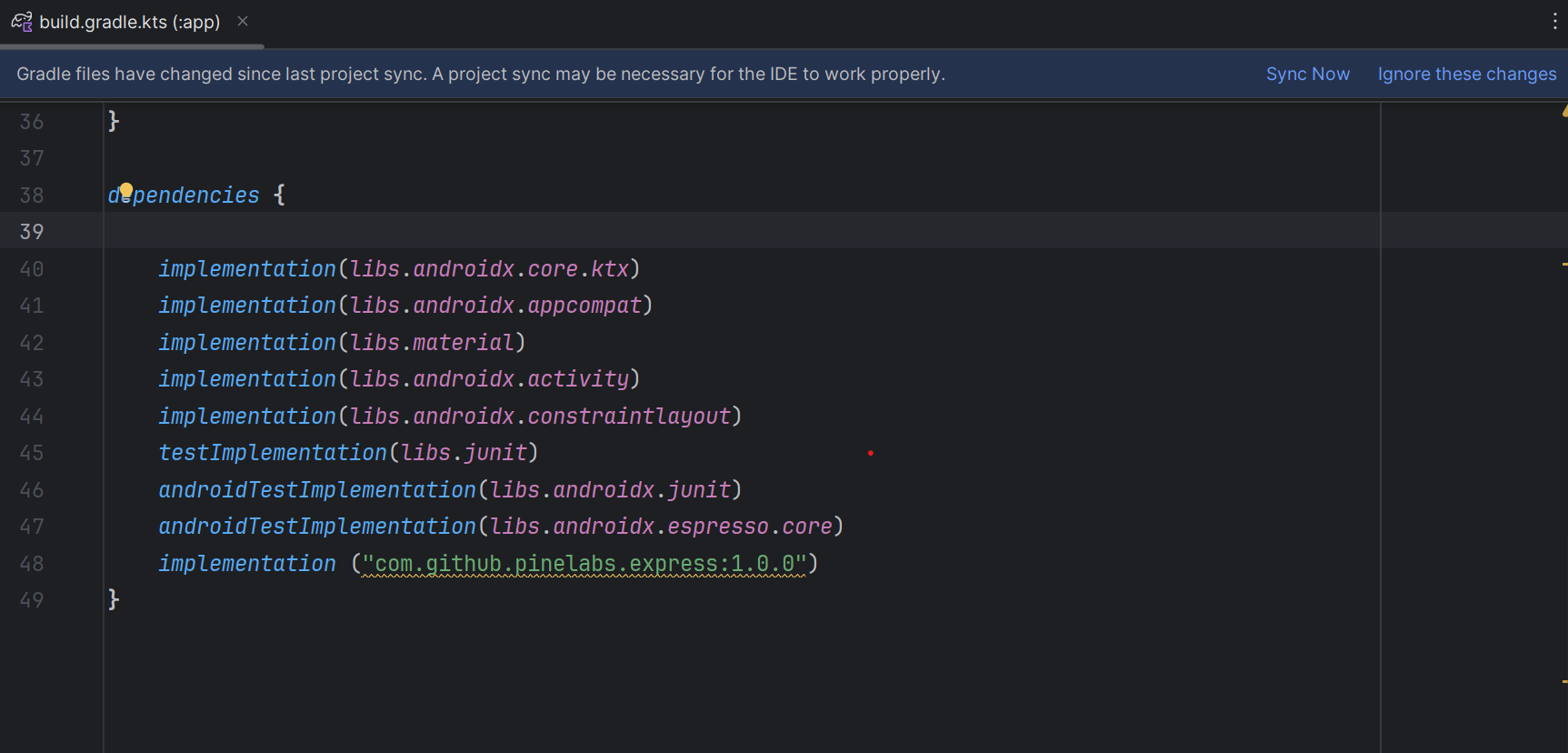
Add the dependency to your app-level build.gradle:
dependencies {
    implementation 'com.github.pinelabs.express:1.0.0'
}
Alternatively, you can declare it through catalog styling using libs.versions.toml.
2.2. Sync Your Project
Sync your project with Gradle to download the SDK and make it available in your build.
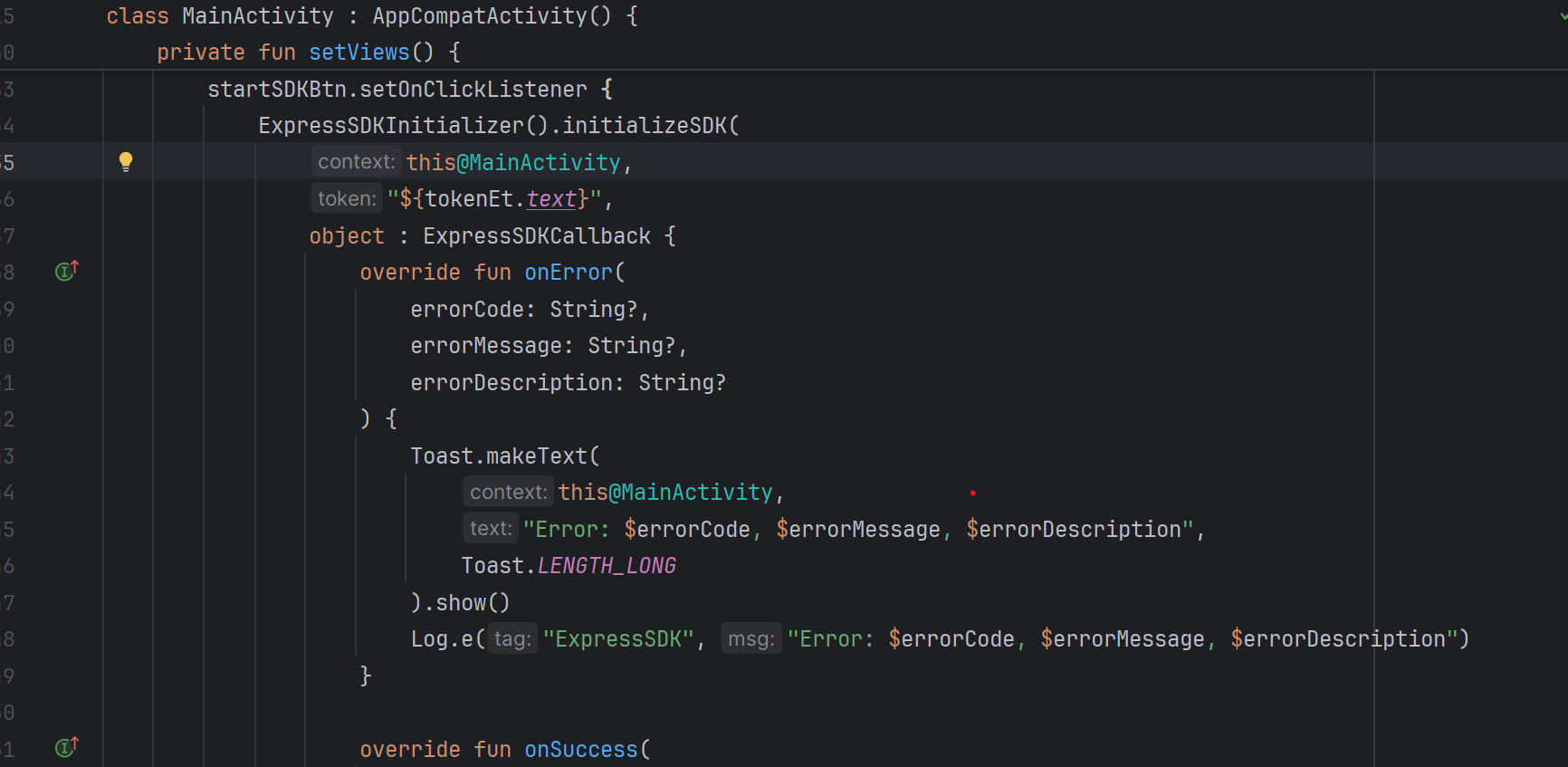
2.3. Initialize and Launch the SDK
Use the method below to start the SDK and pass the token received from the Create Order API.
ExpressSDKInitializer().initializeSDK(
    this@MainActivity,
    "${tokenEt.text}", // Replace with the actual Redirect token
    object : ExpressSDKCallback {

        override fun onError(
            errorCode: String?,
            errorMessage: String?,
            errorDescription: String?
        ) {
            Toast.makeText(
                this@MainActivity,
                "Error: $errorCode, $errorMessage, $errorDescription",
                Toast.LENGTH_LONG
            ).show()
            Log.e("ExpressSDK", "Error: $errorCode, $errorMessage, $errorDescription")
        }

        override fun onSuccess(
            responseCode: String?,
            responseMessage: String?,
            responseDescription: String?
        ) {
            Toast.makeText(
                this@MainActivity,
                "Success: $responseCode, $responseMessage, $responseDescription",
                Toast.LENGTH_LONG
            ).show()
            Log.i("ExpressSDK", "Success: $responseCode, $responseMessage, $responseDescription")
        }

        override fun onCancel(
            responseCode: String?,
            responseMessage: String?,
            responseDescription: String?
        ) {
            Toast.makeText(
                this@MainActivity,
                "Cancelled: $responseCode, $responseMessage, $responseDescription",
                Toast.LENGTH_LONG
            ).show()
            Log.d("ExpressSDK", "Cancelled: $responseCode, $responseMessage, $responseDescription")
        }
    },
    true // Set to false for PROD, true for UAT
)
2.4. Configure the Environment
Configure the runInSandBox flag based on the environment:
- UAT (Testing):
SetrunInSandBox = true - Production (Live):
SetrunInSandBox = false
Note:
- Always validate the full flow in UAT before switching to Production.
2.5. Handle SDK Callbacks
The SDK triggers three callbacks via ExpressSDKCallback. Implement all three to manage the payment flow effectively:
1. onError
Triggered when an error occurs, such as network or API failures.
Provides:
errorCodeerrorMessageerrorDescription
2. onSuccess
Triggered when the transaction is successfully completed.
3. onCancel
Triggered when you customer cancels the transaction.
3. Manage Transactions
To get the status of the transaction made from your application, you can use our Fetch APIs to know the real time status.
3.1. Get Order by Order ID
Use this API to know the real time status of the transaction made on your application. Refer to our Get Order by Order ID API documentation to learn more.
3.2. Webhooks
You can configure the webhook events to know the status of your transactions. Refer to our Webhooks documentation to learn more.
iOS Native SDK Integration Steps
Learn how you can start integrating with Pine Labs Online iOS Native SDK.
The iOS Native SDK integration involves the following steps below:
- Prerequisite
- Installation
- Configure the App Target
- Initialize SDK
- Handle Payments
- Manage Transactions
Note:
- Ensure you store your
client_idandclient_secretin your Backend securely.- Integrate our APIs on your backend system.
- We strictly recommend not to call our APIs from the frontend.
- Failure to adhere to the above guidelines may result in legal implications. In such cases, you will be held responsible for any damage or loss arising from non-compliance.
1. Prerequisite
1.1. Platform & Build Environment
iOS SDK Requirements & Specifications
| Category | Minimum Supported | Description |
|---|---|---|
| iOS Version | iOS 16.0 | Apps must target iOS 16 or higher |
| Deployment Target | iOS 16.0 | Required for SDK integration |
| Swift Version (SDK) | Swift 5.x | SDK is built using Swift 5 |
| Swift Version (App) | Swift 4+ | App source can be Swift 4 or later |
| Xcode Version | Xcode 15.0+ | Required to build iOS 16 apps |
| Framework Type | XCFramework | Device + simulator support |
| Architectures | arm64 | Apple Silicon compatible |
1.2. Enable Apple Pay Capability in Xcode
1. Open Your Project in Xcode
-
Launch Xcode and open your project.
-
In the Project Navigator (left panel), select your project name.
-
Under Targets, select your app target.
2. Configure Signing & Capabilities
-
Click on the Signing & Capabilities tab at the top of the main editor.
-
Ensure that your Team and Bundle Identifier are properly configured.
-
Verify that your project uses a valid Apple Developer account (with Merchant ID access).
3. Add the Apple Pay Capability
- Click the
**+ Capability**button in the top-left corner. - In the popup, search for Apple Pay.
- Double-click Apple Pay (or press Enter) to add it.
- The Apple Pay capability will now appear under your app’s capabilities list.
4. Configure Merchant IDs
- Under the newly added Apple Pay section, locate Merchant IDs.
- Click the “+” button to add one.
- Select an existing Merchant ID if already created in the Apple Developer Portal.
- If not available, choose “Add an Account → Manage Certificates, Identifiers & Profiles” to create a new Merchant ID.
- Use a naming convention such as:
bussiness_name.com.yourcompany.app5. Verify Entitlements
Xcode automatically adds the required entitlements file (if not already present) and enables the following key:
<key>com.apple.developer.in-app-payments</key>
<array>
  <string>merchant.com.yourcompany.app</string>
</array>
This ensures your app is authorized to process Apple Pay transactions using the registered Merchant ID(s).
1.3. Integrate APIs in Your Backend
Start a payment by triggering the payment flow. To start a payment, follow the below steps:
1.3.1. Generate Token
Integrate our Generate Token API in your backend servers to generate the auth token. Use the token generated to authenticate Pine Labs Online APIs.
Below are the sample requests and response for the Generate Token API.
curl --location 'https://pluraluat.v2.pinepg.in/api/auth/v1/token' \
--header 'accept: application/json' \
--header 'content-type: application/json' \
--header 'Request-Timestamp: 2024-07-09T07:57:08.022Z' \
--header 'Request-ID: c17ce30f-f88e-4f81-ada1-c3b4909ed235' \
--data '
{
  "client_id": "a17ce30e-f88e-4f81-ada1-c3b4909ed232",
  "client_secret": "fgwei7egyhuggwp39w8rh",
  "grant_type": "client_credentials"
}
'
curl --location 'https://api.pluralpay.in/api/auth/v1/token' \
--header 'accept: application/json' \
--header 'content-type: application/json' \
--header 'Request-Timestamp: 2024-07-09T07:57:08.022Z' \
--header 'Request-ID: c17ce30f-f88e-4f81-ada1-c3b4909ed235' \
--data '
{
"client_id": "a17ce30e-f88e-4f81-ada1-c3b4909ed232",
"client_secret": "fgwei7egyhuggwp39w8rh",
"grant_type": "client_credentials"
}
'{
"access_token": "eyJhbGciOiJIUzI1NiIsInR5cCI6IkpXVCJ9.eyJzdWIiOiIxMjM0NTY3ODkwIiwibmFtZSI6IkpvaG4gRG9lIiwiaWF0IjoxNTE2MjM5MDIyfQ.SflKxwRJSMeKKF2QT4fwpMeJf36POk6yJV_adQssw5c",
"expires_in": 3600
}Click here for request and response parameter information.
The table below lists the request parameters of our Generate Token API.
| Parameter | Type | Description |
|---|---|---|
| client_id required | string |
Unique client identifier in the Pine Labs Online database. Example: a17ce30e-f88e-4f81-ada1-c3b4909ed232Note: The Onboarding team has provided you with this information as part of the onboarding process. |
| client_secret required | string |
Unique client secret key provided while onboarding. Example: fgwei7egyhuggwp39w8rhNote: The Onboarding team has provided you with this information as part of the onboarding process. |
| grant_type required | string |
The grant type to generate an access token. Accepted value: client_credentials
|
The table below lists the response parameters of our Generate Token API.
| Parameter | Type | Description |
|---|---|---|
| access_token | string |
The access token generated by the system. • Minimum length: 1 character. • Maximum length: 8192 characters. Example: eyJhbGciOiJIUzI1NiIsInNote: Use this token in the authorization headers to authenticate Pine Labs Online APIs. |
| expires_at | string |
Access duration timestamp. Example: 2024-06-28T13:26:06.909140Z
|
Refer to our Generate Token API documentation to learn more.
1.3.2. Generate Checkout Link
Use this API to create a infinity checkout link, for authentication use the generated access token in the headers of the API request.
Below are the sample requests and response for a Generate Checkout Link API.
curl --location 'https://pluraluat.v2.pinepg.in/api/checkout/v1/orders' \
--header 'Authorization: Bearer eyJhbGciOiJIUzI1NiIsInR5cCI6IkpXVCJ9.eyJzdWIiOiIxMjM0NTY3ODkwIiwibmFtZSI6IkpvaG4gRG9lIiwiaWF0IjoxNTE2MjM5MDIyfQ.SflKxwRJSMeKKF2QT4fwpMeJf36POk6yJV_adQssw5c' \
--header 'Content-Type: application/json' \
--header 'Request-ID: c17ce30f-f88e-4f81-ada1-c3b4909ed235' \
--header 'Request-Timestamp: 2024-07-09T07:57:08.022Z' \
--header 'accept: application/json' \
--data '
{
  "merchant_order_reference": "112345",
  "order_amount": {
    "value": 1100,
    "currency": "INR"
  },
  "integration_mode": "SDK",
  "pre_auth": false,
  "allowed_payment_methods": [
    "CARD",
    "UPI",
    "NETBANKING",
    "POINTS",
    "WALLET"
  ],
  "notes": "order1",
  "callback_url": "https://sample-callback-url",
  "failure_callback_url": "https://sample-failure-callback-url",
  "purchase_details": {
    "customer": {
      "email_id": "[email protected]",
      "first_name": "Kevin",
      "last_name": "Bob",
      "customer_id": "123456",
      "mobile_number": "9876543210",
      "country_code": "91",
      "billing_address": {
        "address1": "10 Downing Street Westminster London",
        "address2": "Oxford Street Westminster London",
        "address3": "Baker Street Westminster London",
        "pincode": "51524036",
        "city": "Westminster",
        "state": "Westminster",
        "country": "London",
        "full_name": "harsh kumar",
        "address_type": "HOME/WORK/OTHER",
        "address_category": "BILLING"
      },
      "shipping_address": {
        "address1": "10 Downing Street Westminster London",
        "address2": "Oxford Street Westminster London",
        "address3": "Baker Street Westminster London",
        "pincode": "51524036",
        "city": "Westminster",
        "state": "Westminster",
        "country": "London",
        "full_name": "harsh kumar",
        "address_type": "HOME/WORK/OTHER",
        "address_category": "BILLING"
      }
    },
    "merchant_metadata": {
      "express_checkout_enabled": "TRUE",
      "express_checkout_allowed_action": "checkoutCollectAddress",
      "key1": "DD",
      "key2": "XOF"
    }
  },
  "cart_details": {
    "cart_items": [
      {
        "item_id": "cart_id_1",
        "item_name": "T Shirt",
        "item_description": "Test Description",
        "item_details_url": "https://chriscross.in/cdn/shop/files/95_800x.jpg",
        "item_image_url": "https://chriscross.in/cdn/shop/files/95_800x.jpg",
        "item_original_unit_price": 1,
        "item_discounted_unit_price": 1,
        "item_quantity": 1,
        "item_currency": "INR"
      }
    ]
  }
}
'
curl --location 'https://api.pluralpay.in/api/checkout/v1/orders' \
--header 'Authorization: Bearer eyJhbGciOiJIUzI1NiIsInR5cCI6IkpXVCJ9.eyJzdWIiOiIxMjM0NTY3ODkwIiwibmFtZSI6IkpvaG4gRG9lIiwiaWF0IjoxNTE2MjM5MDIyfQ.SflKxwRJSMeKKF2QT4fwpMeJf36POk6yJV_adQssw5c' \
--header 'Content-Type: application/json' \
--header 'Request-ID: c17ce30f-f88e-4f81-ada1-c3b4909ed235' \
--header 'Request-Timestamp: 2024-07-09T07:57:08.022Z' \
--header 'accept: application/json' \
--data '
{
"merchant_order_reference": "112345",
"order_amount": {
"value": 1100,
"currency": "INR"
},
"integration_mode": "SDK",
"pre_auth": false,
"allowed_payment_methods": [
"CARD",
"UPI",
"NETBANKING",
"POINTS",
"WALLET"
],
"notes": "order1",
"callback_url": "https://sample-callback-url",
"failure_callback_url": "https://sample-failure-callback-url",
"purchase_details": {
"customer": {
"email_id": "[email protected]",
"first_name": "Kevin",
"last_name": "Bob",
"customer_id": "123456",
"mobile_number": "9876543210",
"country_code": "91",
"billing_address": {
"address1": "10 Downing Street Westminster London",
"address2": "Oxford Street Westminster London",
"address3": "Baker Street Westminster London",
"pincode": "51524036",
"city": "Westminster",
"state": "Westminster",
"country": "London",
"full_name": "harsh kumar",
"address_type": "HOME/WORK/OTHER",
"address_category": "BILLING"
},
"shipping_address": {
"address1": "10 Downing Street Westminster London",
"address2": "Oxford Street Westminster London",
"address3": "Baker Street Westminster London",
"pincode": "51524036",
"city": "Westminster",
"state": "Westminster",
"country": "London",
"full_name": "harsh kumar",
"address_type": "HOME/WORK/OTHER",
"address_category": "BILLING"
}
},
"merchant_metadata": {
"express_checkout_enabled": "TRUE",
"express_checkout_allowed_action": "checkoutCollectAddress",
"key1": "DD",
"key2": "XOF"
}
},
"cart_details": {
"cart_items": [
{
"item_id": "cart_id_1",
"item_name": "T Shirt",
"item_description": "Test Description",
"item_details_url": "https://chriscross.in/cdn/shop/files/95_800x.jpg",
"item_image_url": "https://chriscross.in/cdn/shop/files/95_800x.jpg",
"item_original_unit_price": 1,
"item_discounted_unit_price": 1,
"item_quantity": 1,
"item_currency": "INR"
}
]
}
}
'{
"token": "REDIRECT TOKEN",
"order_id": "ORDER ID",
"redirect_url": "https://api.pluralonline.com/api/v3/checkout-bff/redirect/checkout?token=REDIRECT TOKEN",
"response_code": 200,
"response_message": "Order Creation Successful."
}Click here for request and response parameter information.
The table below lists the request parameters of our Create Checkout Link API.
| Parameter | Type | Description |
|---|---|---|
| merchant_order_reference required | string |
Enter a unique identifier for the order request.
1234567890Supported characters:
|
| order_amount required | object |
An object that contains the transaction amount details. Learn more about the order_amount child object.
|
pre_auth | boolean |
The pre-authorization type. Possible values:
|
| allowed_payment_methods | array of strings |
The type of payment methods you want to offer customers. Accepted values:
Note: Ensure it is configured for you. |
| notes | string |
Note to show against an order. Example: Order1
|
| callback_url | string |
Use this URL to redirect your customers to specific success or failure pages based on the order or product details. Example: https://sample-callback-url |
| failure_callback_url | string |
Use this URL to redirect your customers to specific failure pages based on the order or product details. Example: https://sample-failure-callback-url |
| purchase_details | object |
An object that contains purchase details. Learn more about the purchase_details child object.
|
| cart_details | object |
An object that contains cart details. Learn more about the cart_details child object.
|
Order Amount [Child Object]
The table below lists the various parameters in the order_amount child object. This object is part of the Create Checkout Link request object.
| Parameter | Type | Description |
|---|---|---|
| value required | integer |
Transaction amount in Paisa.
1000
|
| currency required | string |
Type of currency. Example: INR
|
Purchase Details [Child Object]
The table below lists the various parameters in the purchase_details child object. This object is part of the Create Checkout Link request object.
| Parameter | Type | Description |
|---|---|---|
| customer | object |
An object that contains the customer details. Learn more about the customer child object. |
| merchant_metadata | object |
An object of key-value pair that can be used to store additional information. Learn more about the merchant_metadata child object. |
Customer [Child Object]
The table below lists the various parameters in the customer child object. This is part of the purchase_details object.
| Parameter | Type | Description |
|---|---|---|
| email_id | string |
Customer's email address.
[email protected] |
| first_name | string |
Customer's first name.
Kevin |
| last_name | string |
Customer's last name.
Bob |
| customer_id | string |
Unique identifier of the customer in the Pine Labs Online database.
123456 |
| mobile_number | string |
Customer's mobile number.
9876543210 |
| country_code | string |
Country code of the registered mobile number.
91Note: If the country code is not provided, it defaults to 91. |
| billing_address | object |
An object that contains the details of the billing address. Learn more about our billing_address child object. |
| shipping_address | object |
An object that contains the shipping address details. Learn more about our shipping_address child object. |
Billing Address [Child Object]
The table below lists the various parameters in the billing_address child object. This is part of the customer object.
| Parameter | Type | Description |
|---|---|---|
| address1 | string | Customer's billing address1.
10 Downing Street Westminster London |
| address2 | string | Customer's billing address2.
Oxford Street Westminster London |
| address3 | string | Customer's billing address3.
Baker Street Westminster London |
| pincode | string | Pincode of the billing address.
51524036 |
| city | string | City of the billing address.
Westminster |
| state | string | State of the billing address.
Westminster |
| country | string | Country of the billing address.
London |
| full_name | string | Full name of the customer.
Doctor Strange |
| address_type | string | Type of the billing address. Example: HomeAccepted values:
|
| address_category | string | Address category. Example: Billing |
Shipping Address [Child Object]
The table below lists the various parameters in the shipping_address child object. This is part of the customer object.
| Parameter | Type | Description |
|---|---|---|
| address1 | string | Customer's shipping address1.
10 Downing Street Westminster London |
| address2 | string | Customer's shipping address2.
Oxford Street Westminster London |
| address3 | string | Customer's shipping address3.
Baker Street Westminster London |
| pincode | string | Pincode of the shipping address.
51524036 |
| city | string | City of the shipping address.
Westminster |
| state | string | State of the shipping address.
Westminster |
| country | string | Country of the shipping address.
London |
| full_name | string | Full name of the customer.
Doctor Strange |
| address_type | string | Type of the shipping address. Example: HomeAccepted values:
|
| address_category | string | Address category. Example: Shipping |
Merchant Metadata [Child Object]
The table below lists the various parameters in the merchant_metadata child object. This object is part of the purchase_details child object.
| Parameter | Type | Description |
|---|---|---|
| express_checkout_allowed_action | string |
Access allowed during the express checkout. Accepted values:
|
Cart Details [Child Object]
The table below lists the various parameters in the cart_details child object. This object is part of the Create Checkout Link request object.
| Parameter | Type | Description |
|---|---|---|
| cart_items | array of objects |
An object that contains the cart item details. Learn more about the cart_itmes child object. |
Cart Items [Child Object]
The table below lists the various parameters in the cart_items child object. This object is part of the cart_details child object.
| Parameter | Type | Description |
|---|---|---|
| item_id | string |
Unique identifier of the item. Example: cart_id_1
|
| item_name | string |
Name of the item. Example: T Shirt
|
| item_description | string |
Description corresponding to the item. Example: Shopping on Diwali Sale
|
| item_image_url | string |
Image URL of the item. Example: https://chriscross.in/cdn/shop/files/95_800x.jpgNote: To ensure better resolution and optimal display on the checkout, please provide the image in 24x24 dimensions.
|
| item_original_unit_price | string |
Original price of the item. Example: 199
|
| item_discounted_unit_price | string |
Discount price of the item. Example: 49
|
| item_quantity | string |
Number of items purchased. Example: 2
|
| item_currency | string |
Indicates the currency type for the purchase of the item. Example: INR
|
The table below lists the various parameters returned in the Generate Checkout Link response objects.
| Parameter | Type | Description | token | string |
Token generated by our system for Pine Labs Online Hosted Checkout. Example: eyJhbGciOiJIUzI1NiIsInR5cCI6IkpXVCJ9.eyJzdWIiOiIxMjM0NTY3ODkwIiwibmFtZSI6IkpvaG4gRG9lIiwiaWF0IjoxNTE2MjM5MDIyfQ.SflKxwRJSMeKKF2QT4fwpMeJf36POk6yJV_adQssw5c
|
|---|---|---|
| order_id | string |
Unique identifier of the order in the Pine Labs Online database. Example: v1-5757575757-aa-hU1rUd |
| redirect_url | string |
The checkout link generated on our system. Example: https://api.pluralonline.com/api/v3/checkout-bff/redirect/checkout?token=< |
| response_code | integer |
Response code of the request. Example: 200 |
| response_message | string |
Corresponding message to the response code. Example: Order Creation Successful
|
Refer to our Generate Checkout Link API documentation to learn more.
2. Installation
Follow the below steps to install Pine Labs Online iOS Native SDK using Xcode. We provide two methods to integrate our SDK into your project.
2.1 Add the SDK via Swift Package Manager
Recommended method for easy updates and dependency management
Requirements
Installation Steps
Open your project in Xcode
Launch Xcode and open your iOS project.
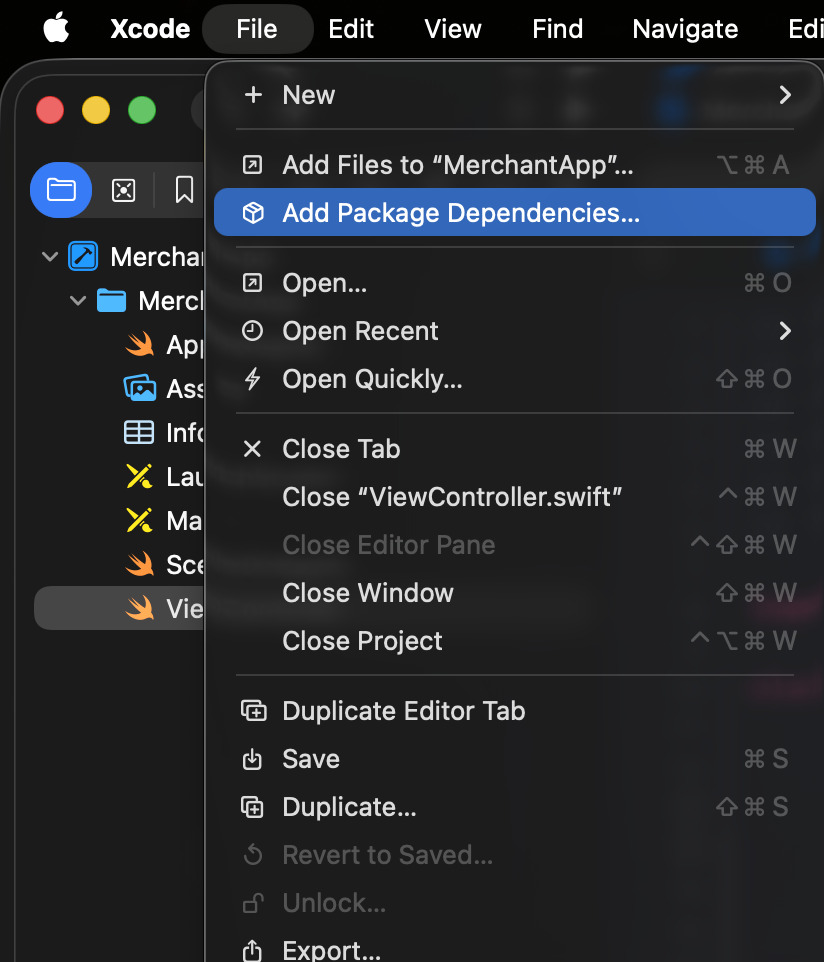
Navigate to Add Packages
Go to the menu:
File → Add Packages…
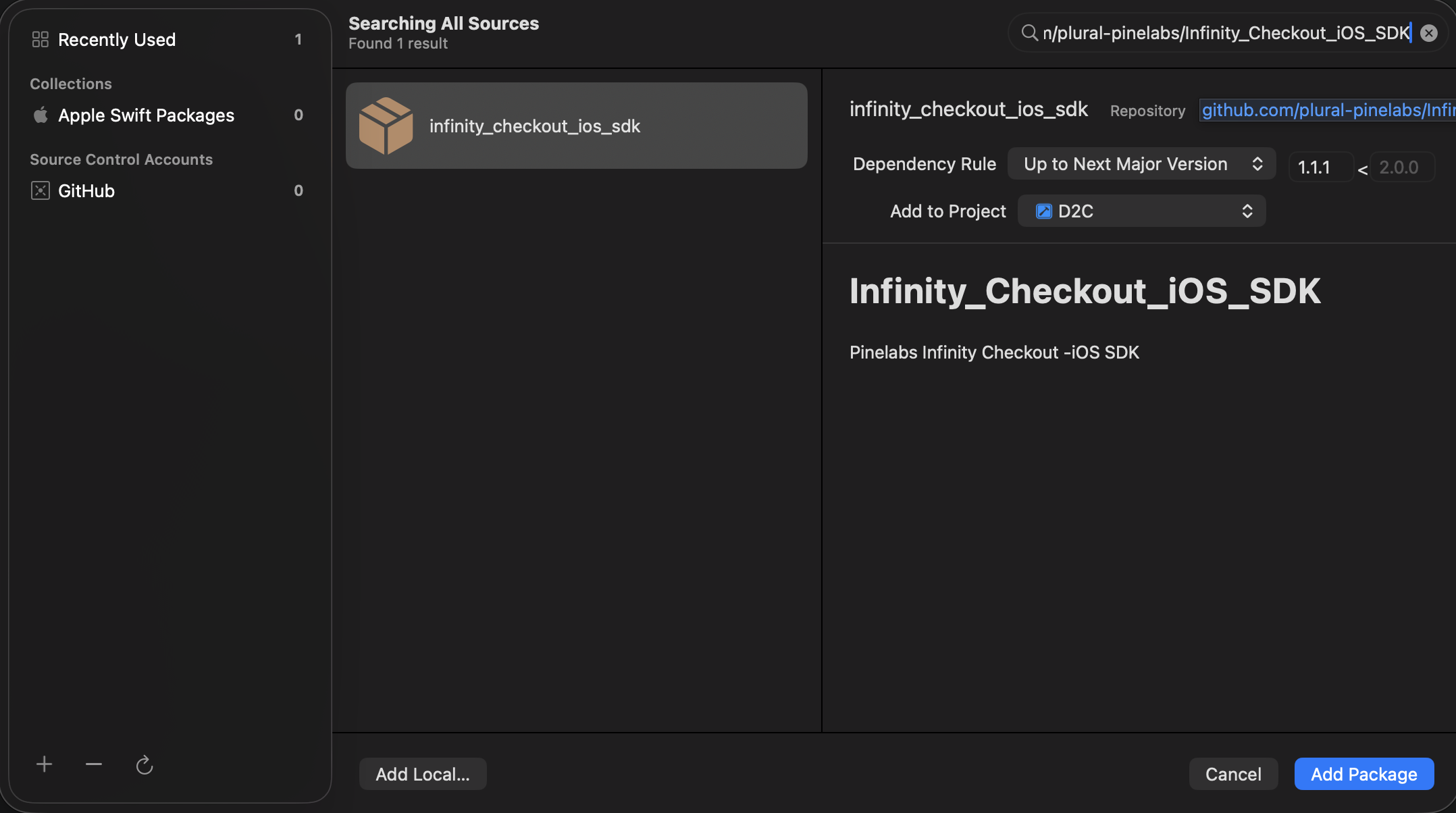
Enter SDK GitHub URL
In the search bar, paste the SDK GitHub URL https://github.com/plural-pinelabs/Infinity_Checkout_iOS_SDK.
Select Release Tag
Choose the latest Release Tag (e.g., 1.1.1).
Add to App Target
Add the package to your App Target.
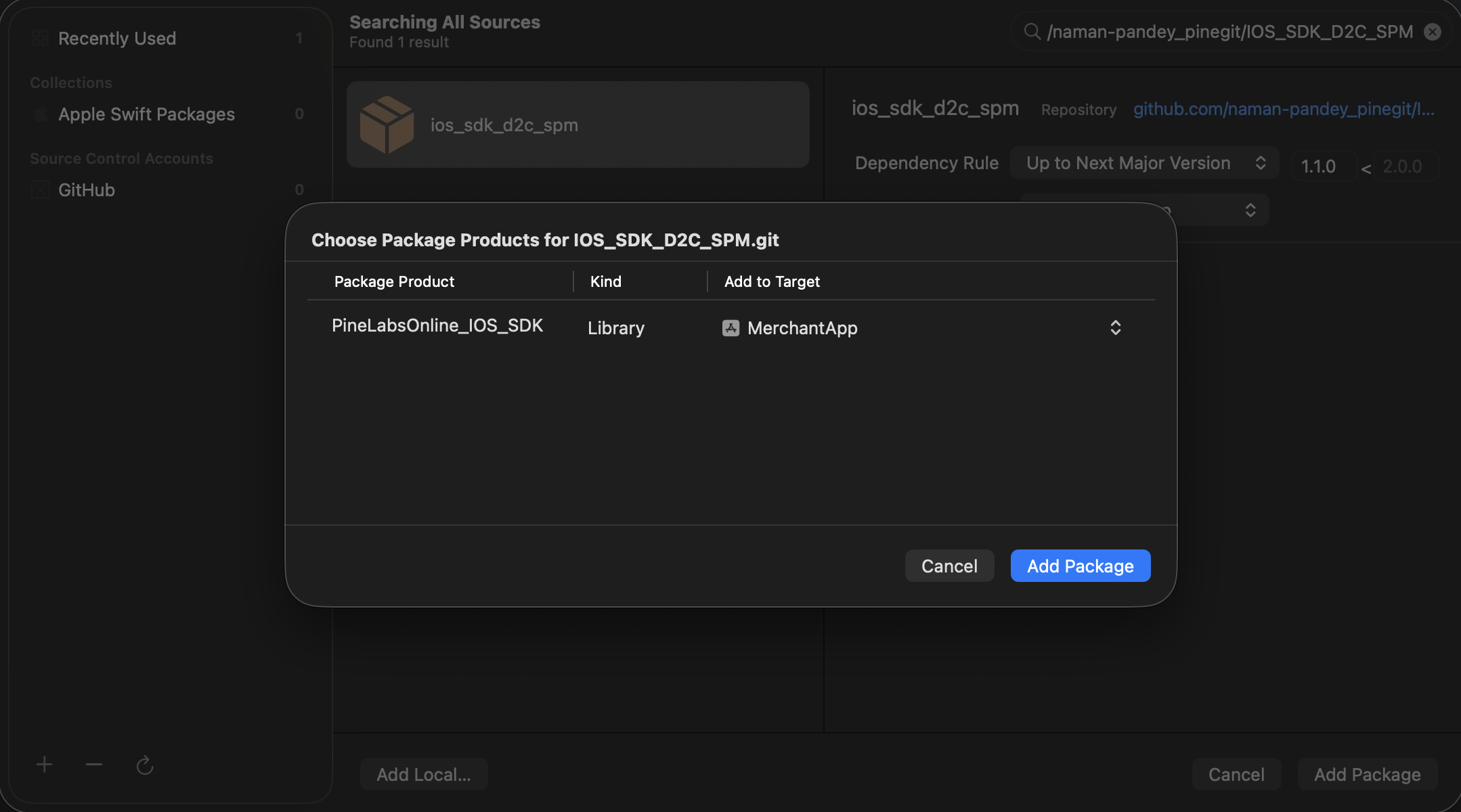
Verify Installation
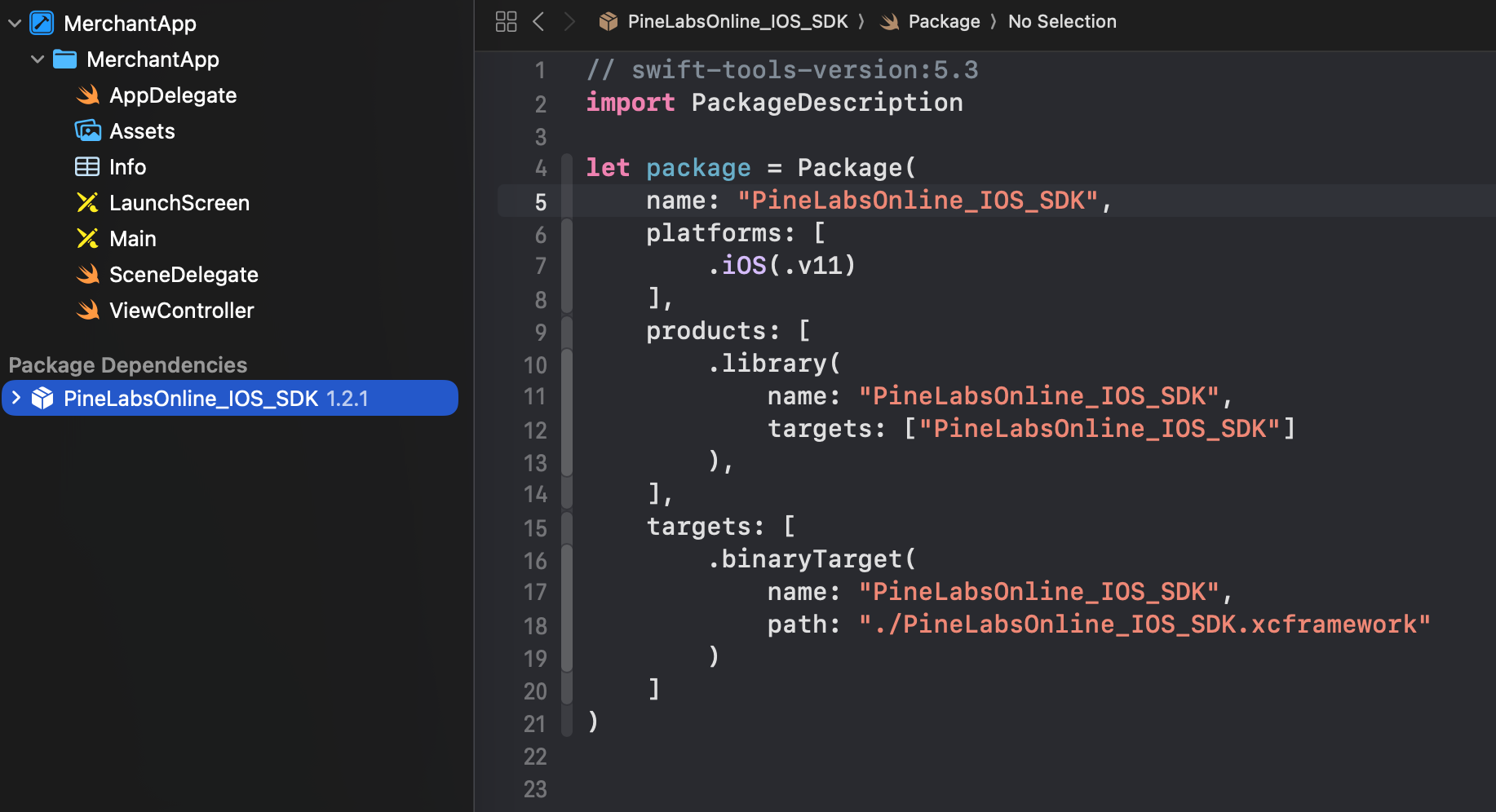
Once added, it should appear in the General tab of your app target. You can also see the package details by clicking on the Package Dependency.
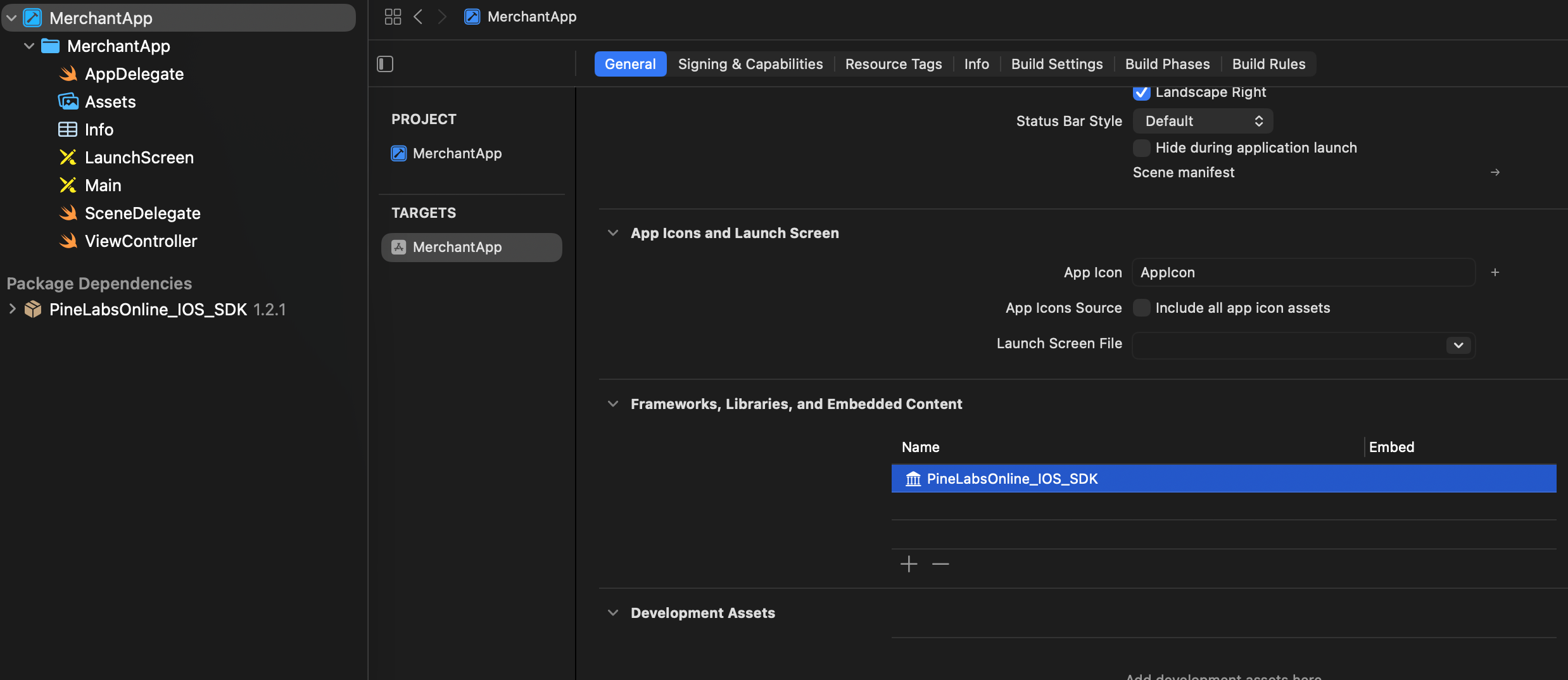
You can also see the package details by clicking on the Package Dependency.
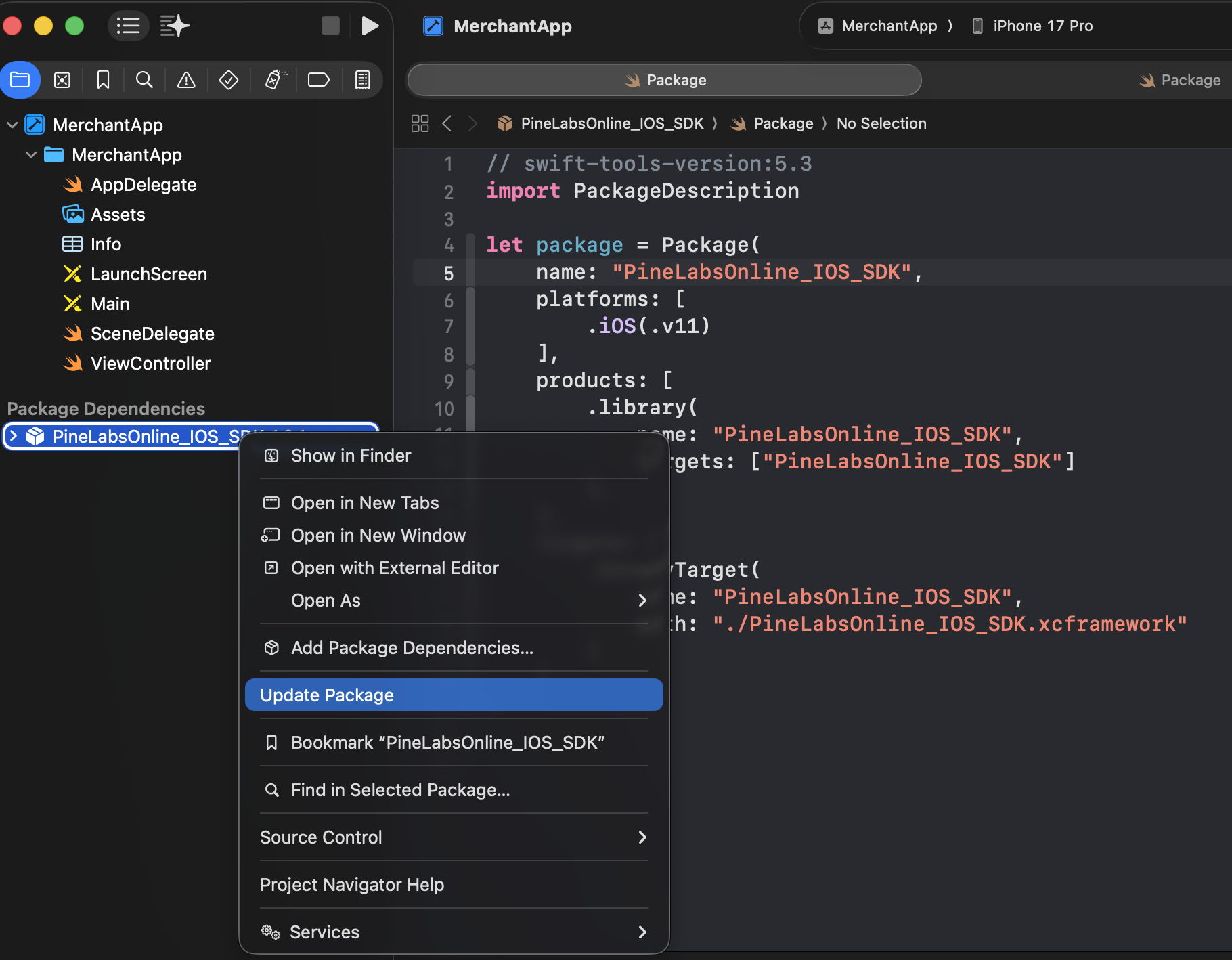
Easy Updates
In case of any new release update, simply select Update Package and it will automatically get the latest build.
2.2 Add the SDK via Manual Method
To add the SDK to your app, import the (SDKFramework).xcframework file to the project using the following steps:
Installation Steps
Download the SDK Framework
You can download the SDK as a (SDKFramework).xcframework file here, which is in a package format that Apple recommends for distributing binary frameworks.
Drag and Drop Framework
Drag and drop the (SDKFramework).xcframework file into your Xcode project in the Project Navigator under the Frameworks section.
Configure Dialog Settings
A dialog box will appear when you drop the framework file into your project.
Ensure that the checkbox labeled "Copy items if needed" is selected. This ensures the framework gets copied into your project directory, making it available for builds.
Complete Installation
Drag and drop the .xcframework in the app.
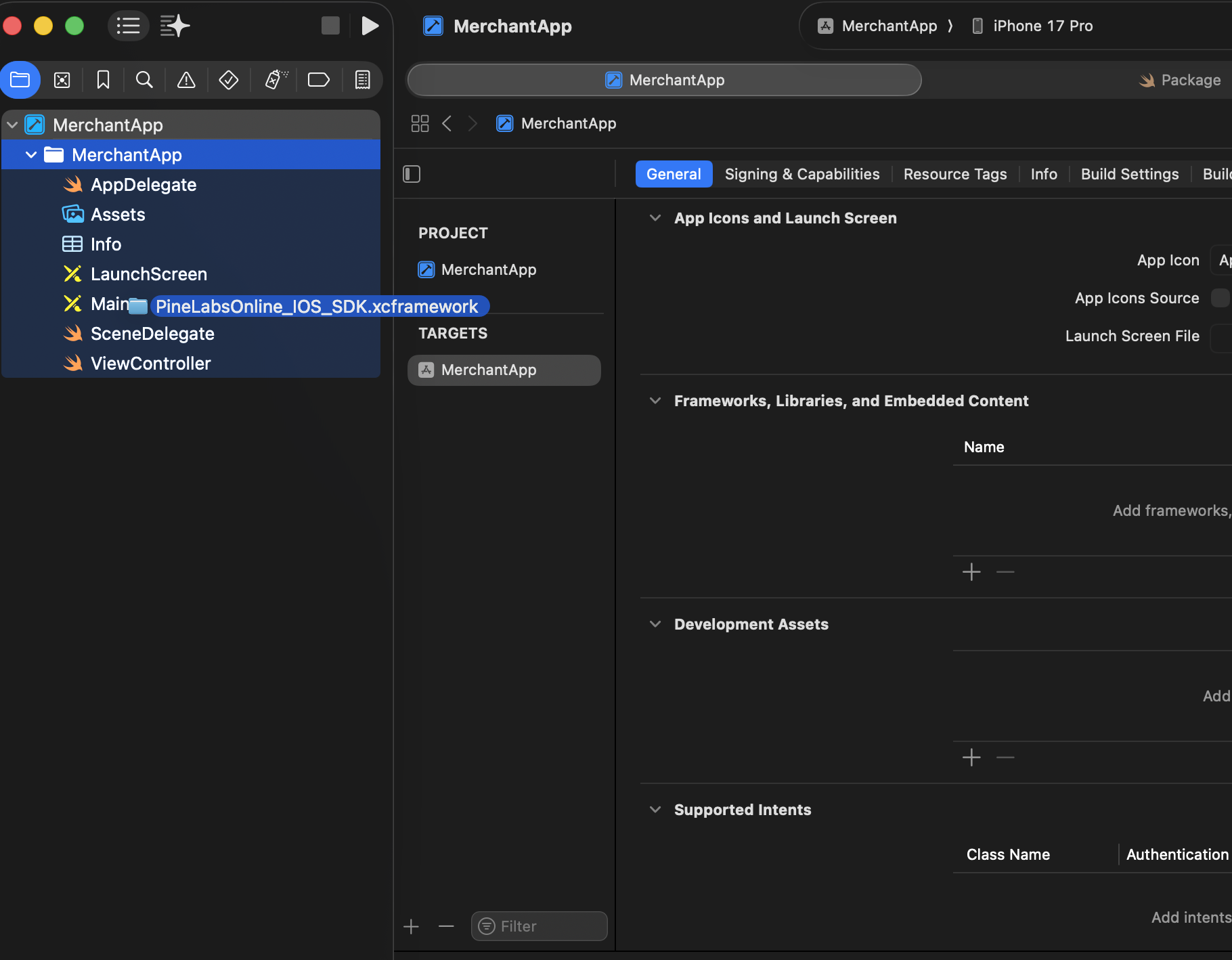
Copy files to destination.
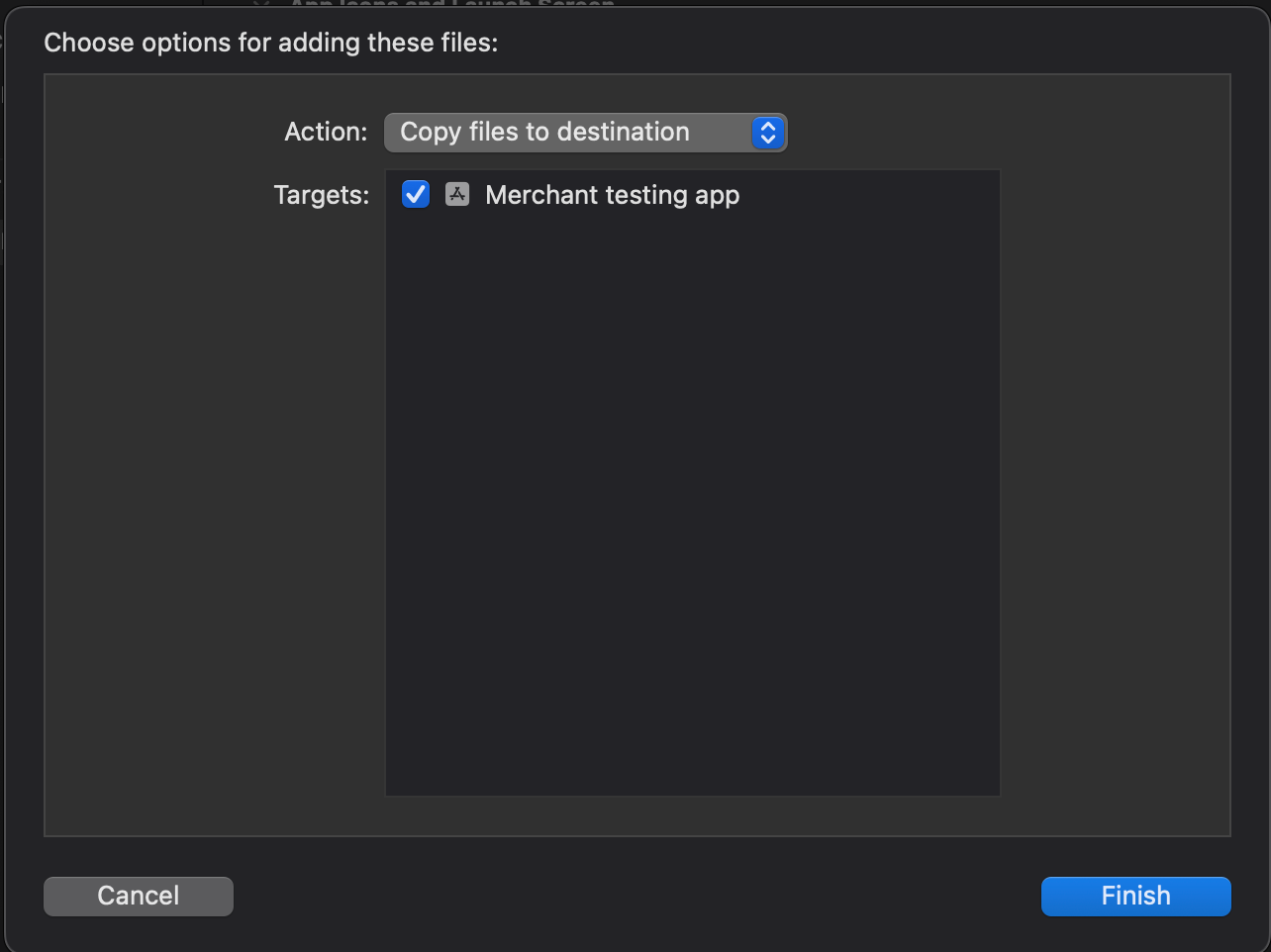
Note:The
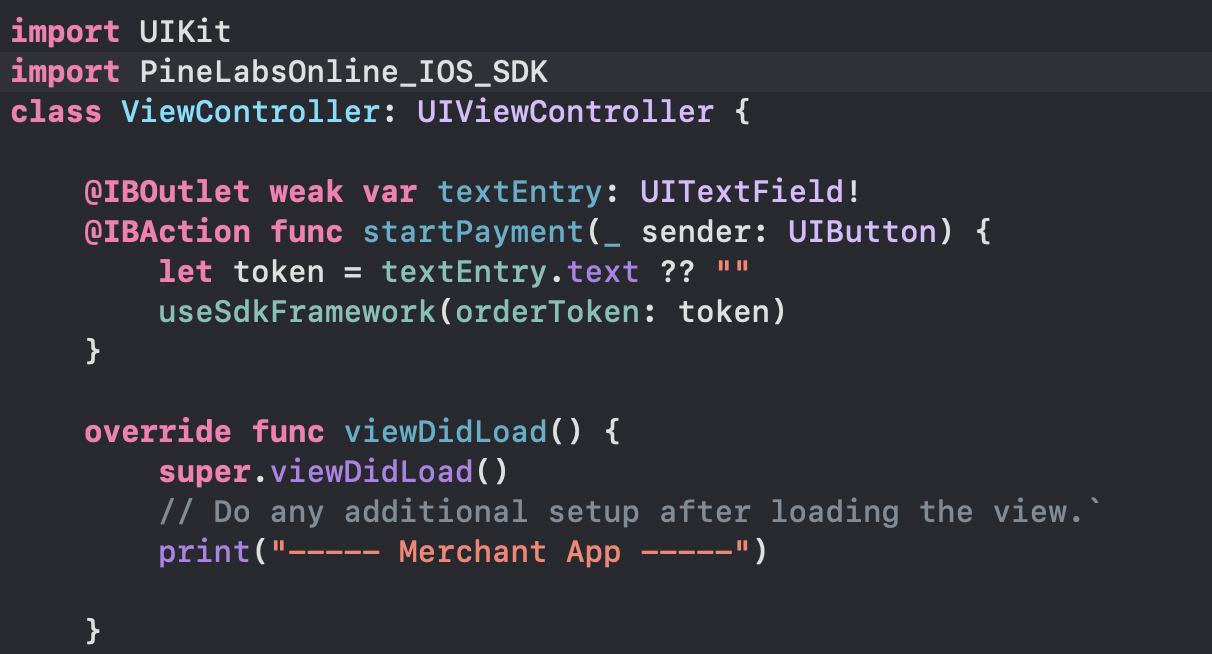
userSDKFrameworkfunction, created during the SDK installation, implements startPayment. Use this function to pass the order token and initiate the call toios_SDK.
Watch Out:Ensure that the minimum compilation compatibility version is set to iOS 16 or 17
3. Configure the App Target
You need to configure the target to embed the SDK framework properly.
-
Navigate to the General tab of your target's settings. Add the
(SDKFramework).xcframeworkfile under the Frameworks, Libraries, and Embedded Content section. -
Ensure you choose
Embed & Sign. This ensures the framework is embedded in your app when it's built and signed properly to run on iOS devices.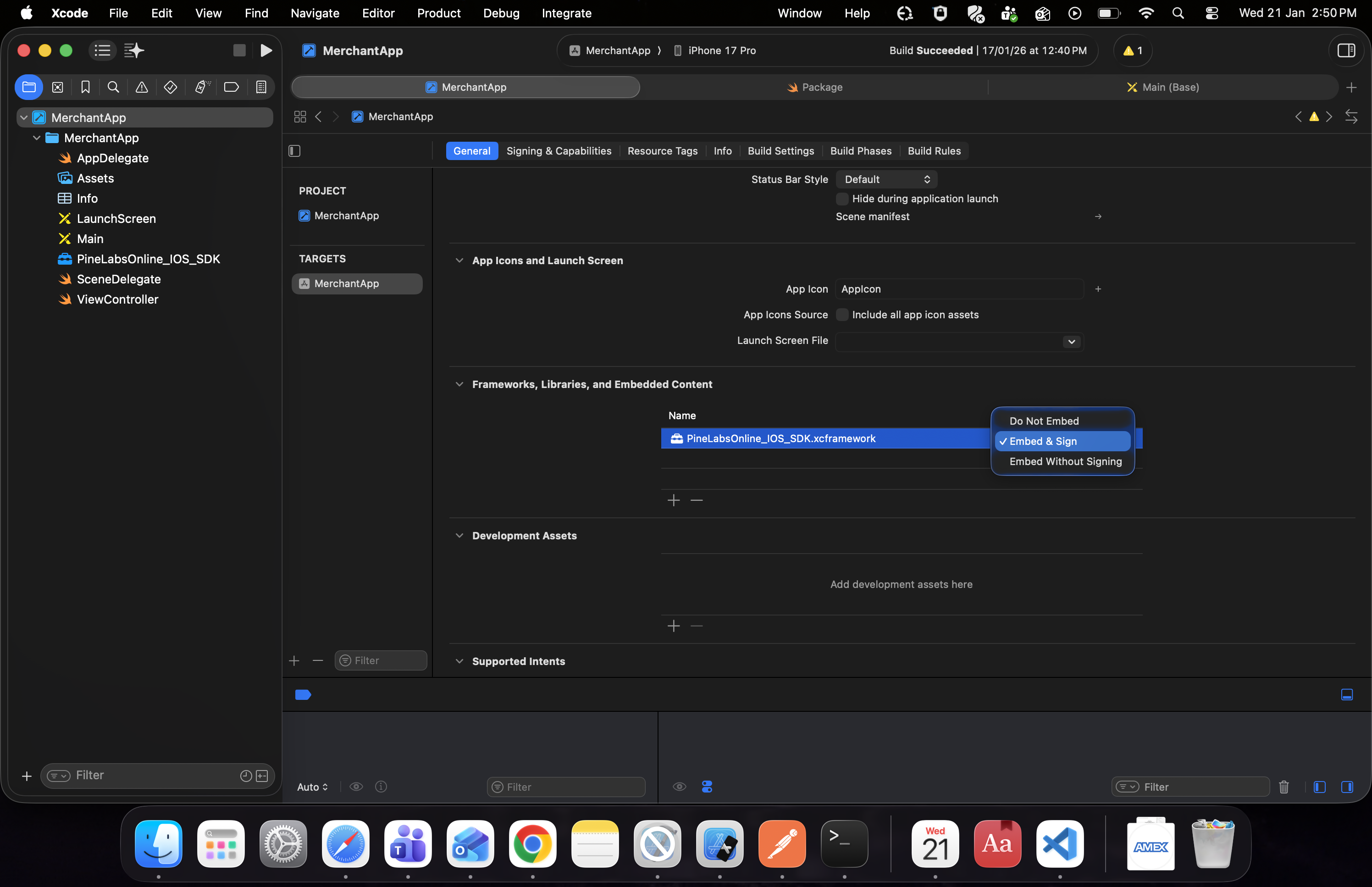
Note:
- Once the
.xcframeworkis embedded, you can import the package in the view controller.
- Info.plist update: To ensure proper functionality, you must update your app’s
Info.plist(Information Property List) file to allow the required connections.
To enable UPI payments, add the necessary URL Schemes in theInfo.plistfile as shown below:
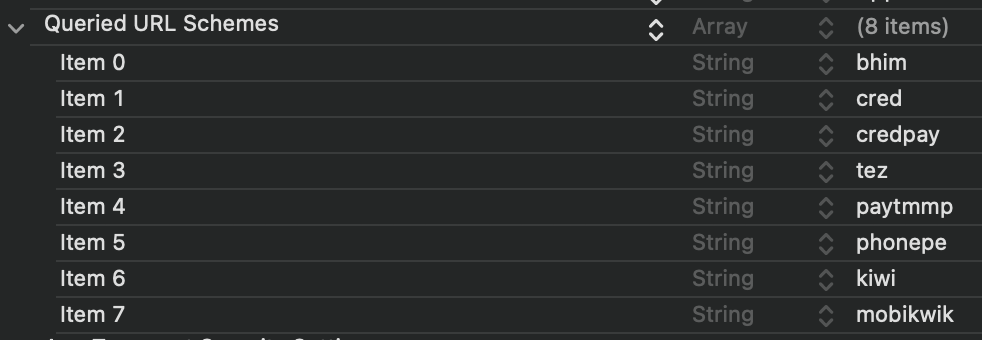
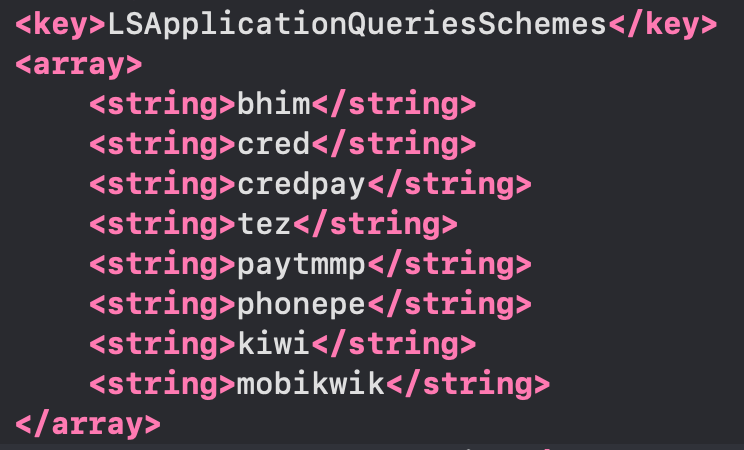
Without these entries, the SDK won’t be able to navigate to the required UPI payment app.
4. Initialize SDK
To initialise the iOS Native SDK, follow the below steps:
-
Import the SDK into the app and,
-
Create an object of the class
EdgeControllerto initiate the payment function. In your application, you are creating a function that passes the order token received from the create order response to start the payment function of our SDK.
Parameters for startPayment:
from: Pass the context of the current ViewController where the SDK is invoked(generally ‘self’).
orderToken: The token generated from the Create Hosted Checkout API response.
environment: Use .uat for testing (default) or .prod for production.
MerchantCallbackResponse: An instance that sends callback messages to the merchant IOS app. This value remains constant.
Note:
- You can use a single build and change the environment variable to run the
SDKin eitherUATorProduction. Currently, only two modes are supported:.uatfor UAT and.prodfor Production.
5. Handle Payments
You need to implement call-back methods to handle your payment responses. This will provide the payment status and reason for transaction failures. Based on the reasons for failures, handling can be built at your end. Transaction callbacks can be listened to via overriding methods of ResponseCallback.
In case of success, inside the SDK we check if the URL being loaded is the completion/final URL in the checkout flow. If that URL is being opened, then onSuccessResponse() is called from your app, which will return the flow back to your app from the SDK, indicating a successful transaction.
onFailureResponse: This method is called when SDK reaches a failure state.
onSuccessResponse: This method is called when the SDK reaches the success state.
onCancelTxn: This method is called when the user cancels the transaction.
onPressedBackButton: This method is called when the user presses the back button.
public class MerchantCallbackResponse: UIViewController, ResponseCallback {

    public func onFailureResponse(orderID: String, status: String, code: String, message: String) {
        print("Test app response: error occurred")
    }

    public func onSuccessResponse(orderId: String, status: String) {
        print("Test app response: transaction response")
    }

    public func onCancelTxn(orderId: String, code: Int, message: String) {
        print("Test app response: transaction cancelled")
    }

    public func onPressedBackButton(code: Int, message: String) {
        print("Test app response: back pressed")
    }
}
6. Manage Transactions
To get the status of the transaction made from your application, you can use our Fetch APIs to know the real time status.
6.1. Get Order by Order ID
Use this API to know the real time status of the transaction made on your application. Refer to our Get Order by Order ID API documentation to learn more.
6.2. Webhooks
You can configure the webhook events to know the status of your transactions. Refer to our Webhooks documentation to learn more.
Updated about 1 month ago