
Quick Guide: Apple Pay Token Decryption
Token decryption is essential for securely retrieving the payment information that Apple Pay encrypts during customer authentication. Apple Pay does not share raw card details; instead, it transmits an encrypted payment token. Decrypting the token allows access to the essential transaction data required to process the payment, including the payment cryptogram and related payment information. This process ensures the secure transmission of sensitive card information and payment authorization.
Token Decryption Options
There are two main approaches for handling Apple Pay token decryption:
Option A: Self-Managed Apple Pay Token Decryption
You have the option to decrypt the Apple Pay token on your end and then send the decrypted payload to Pine Labs for authorization. This can be done by implementing the below:
- Integrate the Apple Pay Web JavaScript SDK with Seamless Checkout.
Important:
- You must have your own Apple Developer Account to decrypt Apple Pay token.
- You need to be PCI-compliant to handle decrypted payment data.
Pre-requisites
If you choose to use your own Apple Developer account, complete the steps below.
- Register an Apple Merchant ID
- Create the Payment Processing Certificate
- Create the Merchant Identity Certificate
1. Register an Apple Merchant ID
- Log in to the Apple Developer Account.
- Go to: Certificates, Identifiers & Profiles → Identifiers
- Click
+to create a new identifier. - Select Merchant IDs → Continue.
- Enter a unique identifier and description.
- Click Register.
This Merchant ID must also be used in your iOS app.
2. Create the Payment Processing Certificate
- Open your Merchant ID details.
- Find Apple Pay Payment Processing Certificate.
- Click Create Certificate.
- You will generate the CSR and upload it to the Apple Developer Account.
- Download the signed
.cerfile.
3. Create the Merchant Identity Certificate
- In the same Merchant ID settings, locate Apple Pay Merchant Identity Certificate.
- Repeat the same steps as above using the Merchant Identity CSR.
Refer to Apple Restoring the Symmetric Key documentation to learn more.
Refer to Apple Payment Token Format Reference documentation to learn more.
Option B: Pine Labs Online-Managed Apple Pay Token Decryption
Pine Labs can decrypt the token on your behalf using Apple Pay developer account. You can enable this by integrating through either of the following:
- Web: for browser-based or website integrations
- App: for mobile application integrations (iOS)
Web
Pine Labs can decrypt the token on your behalf using Pine Labs Online Apple Pay developer account.
- Infinity Checkout – No additional setup needed. Refer to our Infinity Checkout documentation to learn more.
- Seamless Checkout – Refer to our Seamless integration documentation to learn more.
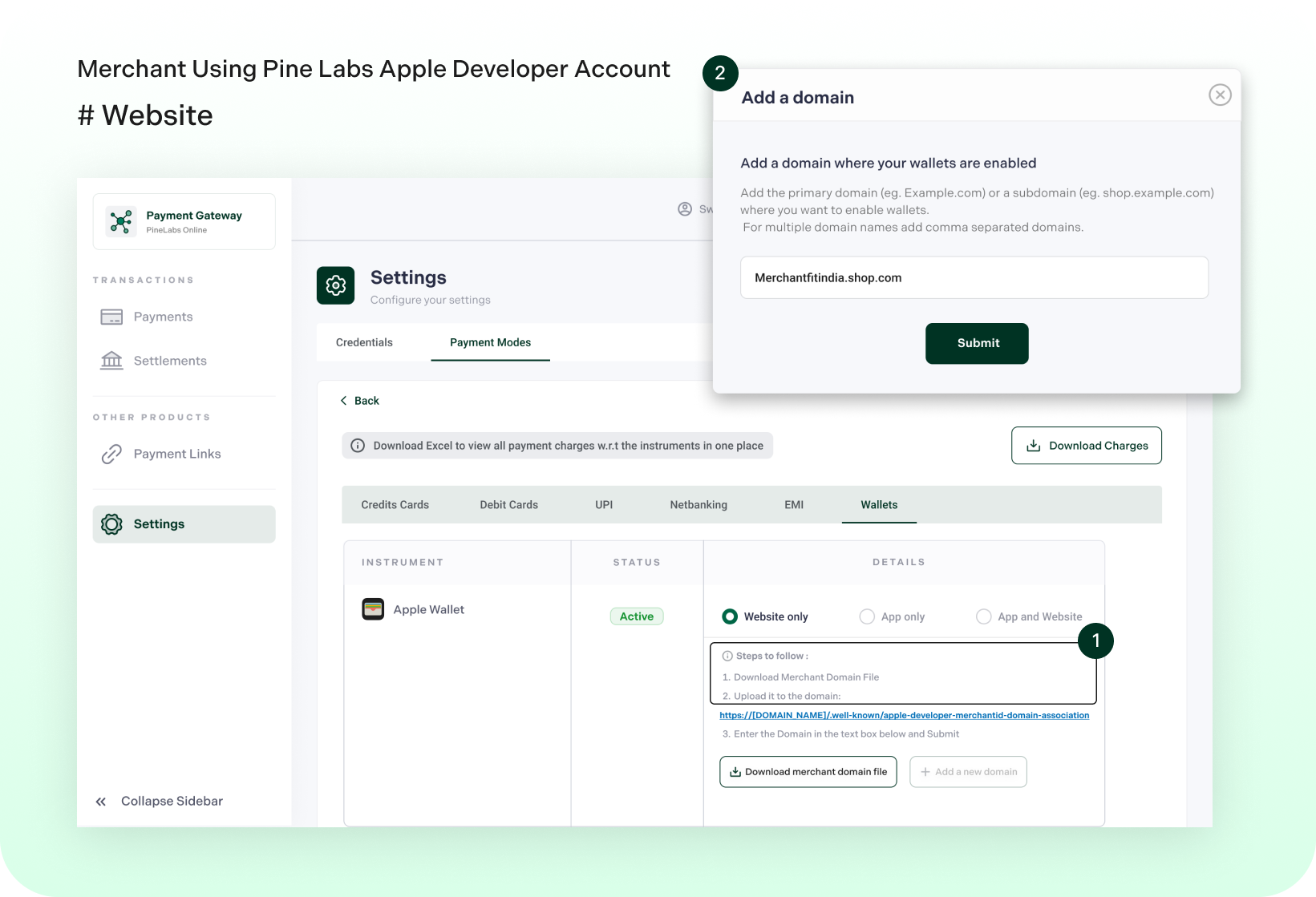
Figure: Pine Labs Online Managed Apple Pay Developer Account
Pre-requisites
If you choose to use Pine Labs Online Apple Pay developer account for Web flow, complete the steps below.
1. Domain Verification
- Download the verification file from the Pine Labs dashboard.
- Place it exactly in the path specified (case-sensitive).
- Domain verification is required for:
- Sites using Pine Labs Online Checkout (overlay/iframe)
- Sites embedding the Web SDK
Important Notes
- The file must be publicly accessible.
- If using a firewall, ensure Apple’s IP addresses are allowed.
- Each domain and subdomain must be verified individually, including:
yourdomain.comshop.yourdomain.comcheckout.yourdomain.com
To verify your domain, first upload the verification file to your domain. Then, submit your domain in the Active Paymode section of the dashboard under Settings. Please refer the Figure: Pine Labs Online Managed Apple Pay Developer Account for guidance.
2. Network Access Requirements
- The verification file must not be behind access control or authentication.
- File hosting must follow Apple’s exact path and naming conventions.
Note:
- If you only use a website or the Pine Labs Web SDK, you do not need your own Apple Pay developer account.
App
Pine Labs can decrypt the token on your behalf using your Apple Pay developer account. You can enable this by integrating through either of the following:
- Native SDK - Refer to our Native SDK documentation to learn more.
- Apple Pay SDK (Standalone) - Refer to our Apple Pay SDK (Standalone) documentation to learn more.
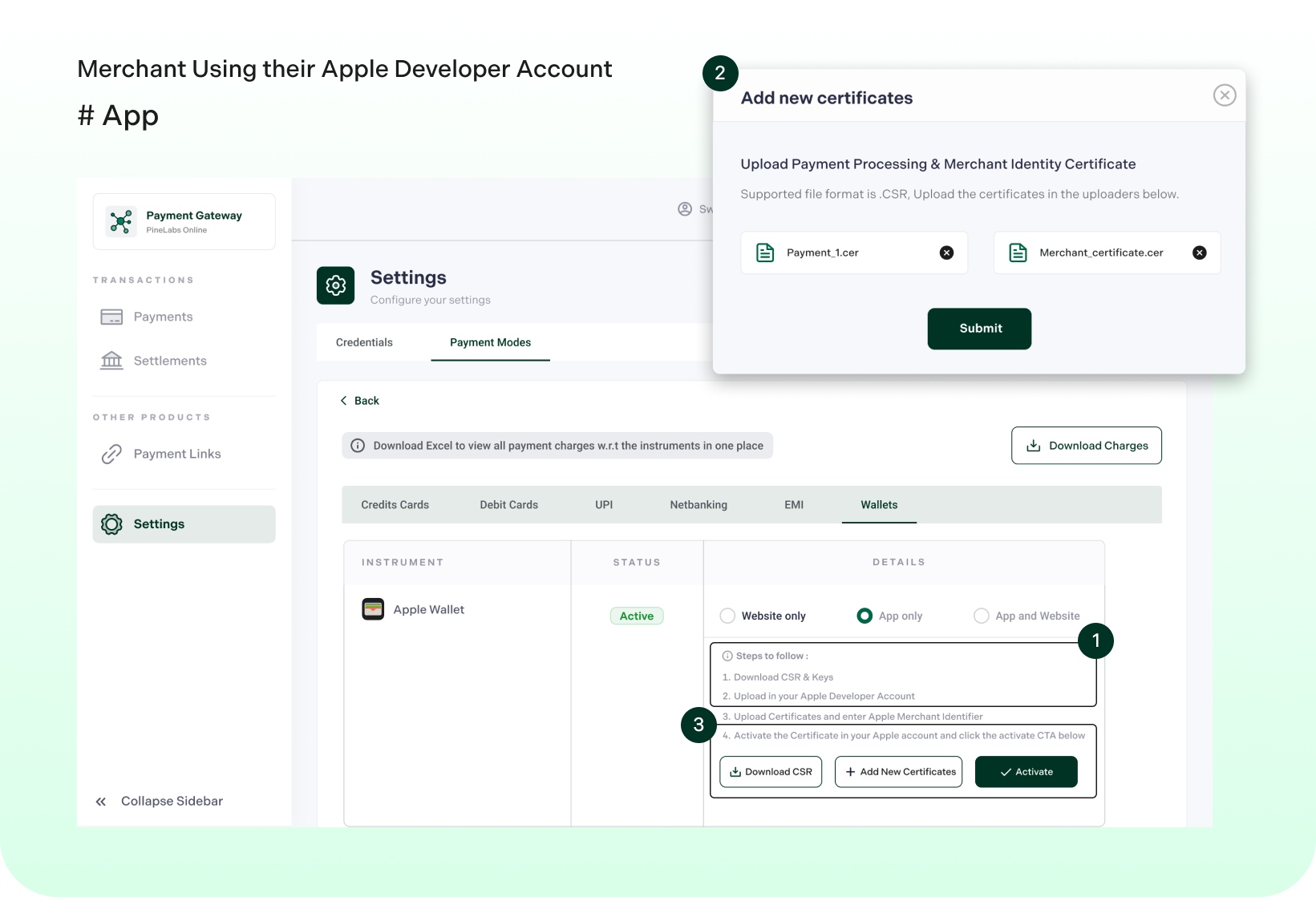
Figure: Self Managed Apple Pay Developer Account
Pre-requisites
If you choose to use Pine Labs Online Apple Pay developer account for App flow, complete the steps below.
- Register an Apple Merchant ID
- Create the Payment Processing Certificate
- Create the Merchant Identity Certificate
1. Register an Apple Merchant ID
- Log in to the Apple Developer Account.
- Go to: Certificates, Identifiers & Profiles → Identifiers
- Click
+to create a new identifier. - Select Merchant IDs → Continue.
- Enter a unique identifier and description.
- Click Register.
This Merchant ID must also be used in your iOS app.
2. Create the Payment Processing Certificate
- Open your Merchant ID details.
- Find Apple Pay Payment Processing Certificate.
- Click Create Certificate.
- Download the CSR file from the Pine Labs Online dashboard.
- Upload the CSR file to the Apple Developer account.
- Download the signed
.cerfile.
3. Create the Merchant Identity Certificate
- In the same Merchant ID settings, locate Apple Pay Merchant Identity Certificate.
- Repeat the same steps as above using the Merchant Identity CSR.
- Upload both signed certificates to the Pine Labs dashboard.
- Enter your Apple Merchant Identifier and submit.
Updated about 1 month ago