
Infinity Checkout Android Native SDK Integration
Learn how you can start integrating with Pine Labs Online Android Native SDK.
The Android Native SDK integration involves the following steps below:
Note:
- Ensure you store your
client_idandclient_secretin your Backend securely.- Integrate our APIs on your backend system.
- We strictly recommend not to call our APIs from the frontend.
- Failure to adhere to the above guidelines may result in legal implications. In such cases, you will be held responsible for any damage or loss arising from non-compliance.
1. [Prerequisite] Integrate APIs in Your Backend
Start a payment by triggering the payment flow. To start a payment, follow the below steps:
1.1. Generate Auth Token
Integrate our Generate Token API in your backend servers to generate the auth token. Use the token generated to authenticate Pine Labs Online APIs.
Below are the sample requests and response for the Generate Token API.
curl --location 'https://pluraluat.v2.pinepg.in/api/auth/v1/token' \
--header 'accept: application/json' \
--header 'content-type: application/json' \
--header 'Request-Timestamp: 2024-07-09T07:57:08.022Z' \
--header 'Request-ID: c17ce30f-f88e-4f81-ada1-c3b4909ed235' \
--data '
{
  "client_id": "a17ce30e-f88e-4f81-ada1-c3b4909ed232",
  "client_secret": "fgwei7egyhuggwp39w8rh",
  "grant_type": "client_credentials"
}
'
curl --location 'https://api.pluralpay.in/api/auth/v1/token' \
--header 'accept: application/json' \
--header 'content-type: application/json' \
--header 'Request-Timestamp: 2024-07-09T07:57:08.022Z' \
--header 'Request-ID: c17ce30f-f88e-4f81-ada1-c3b4909ed235' \
--data '
{
  "client_id": "a17ce30e-f88e-4f81-ada1-c3b4909ed232",
  "client_secret": "fgwei7egyhuggwp39w8rh",
  "grant_type": "client_credentials"
}
'
{
  "access_token": "eyJhbGciOiJIUzI1NiIsInR5cCI6IkpXVCJ9.eyJzdWIiOiIxMjM0NTY3ODkwIiwibmFtZSI6IkpvaG4gRG9lIiwiaWF0IjoxNTE2MjM5MDIyfQ.SflKxwRJSMeKKF2QT4fwpMeJf36POk6yJV_adQssw5c",
  "expires_in": 3600
}
Click here for request and response parameter information.
The table below lists the request parameters of our Generate Token API.
| Parameter | Type | Description |
|---|---|---|
| client_id required | string |
Unique client identifier in the Pine Labs Online database. Example: a17ce30e-f88e-4f81-ada1-c3b4909ed232Note: The Onboarding team has provided you with this information as part of the onboarding process. |
| client_secret required | string |
Unique client secret key provided while onboarding. Example: fgwei7egyhuggwp39w8rhNote: The Onboarding team has provided you with this information as part of the onboarding process. |
| grant_type required | string |
The grant type to generate an access token. Accepted value: client_credentials
|
The table below lists the response parameters of our Generate Token API.
| Parameter | Type | Description |
|---|---|---|
| access_token | string |
The access token generated by the system. • Minimum length: 1 character. • Maximum length: 8192 characters. Example: eyJhbGciOiJIUzI1NiIsInNote: Use this token in the authorization headers to authenticate Pine Labs Online APIs. |
| expires_at | string |
Access duration timestamp. Example: 2024-06-28T13:26:06.909140Z
|
Refer to our Generate Token API documentation to learn more.
1.2. Generate Checkout Link
Use this API to create a infinity checkout link, for authentication use the generated access token in the headers of the API request.
Below are the sample requests and response for a Generate Checkout Link API.
curl --location 'https://pluraluat.v2.pinepg.in/api/checkout/v1/orders' \
--header 'Authorization: Bearer eyJhbGciOiJIUzI1NiIsInR5cCI6IkpXVCJ9.eyJzdWIiOiIxMjM0NTY3ODkwIiwibmFtZSI6IkpvaG4gRG9lIiwiaWF0IjoxNTE2MjM5MDIyfQ.SflKxwRJSMeKKF2QT4fwpMeJf36POk6yJV_adQssw5c' \
--header 'Content-Type: application/json' \
--header 'Request-ID: c17ce30f-f88e-4f81-ada1-c3b4909ed235' \
--header 'Request-Timestamp: 2024-07-09T07:57:08.022Z' \
--header 'accept: application/json' \
--data '
{
  "merchant_order_reference": "112345",
  "order_amount": {
    "value": 1100,
    "currency": "INR"
  },
  "integration_mode": "REDIRECT",
  "pre_auth": false,
  "allowed_payment_methods": [
    "CARD",
    "UPI",
    "NETBANKING",
    "POINTS",
    "WALLET"
  ],
  "notes": "order1",
  "callback_url": "https://sample-callback-url",
  "failure_callback_url": "https://sample-failure-callback-url",
  "purchase_details": {
    "customer": {
      "email_id": "[email protected]",
      "first_name": "Kevin",
      "last_name": "Bob",
      "customer_id": "123456",
      "mobile_number": "9876543210",
      "country_code": "91",
      "billing_address": {
        "address1": "10 Downing Street Westminster London",
        "address2": "Oxford Street Westminster London",
        "address3": "Baker Street Westminster London",
        "pincode": "51524036",
        "city": "Westminster",
        "state": "Westminster",
        "country": "London",
        "full_name": "harsh kumar",
        "address_type": "HOME/WORK/OTHER",
        "address_category": "BILLING"
      },
      "shipping_address": {
        "address1": "10 Downing Street Westminster London",
        "address2": "Oxford Street Westminster London",
        "address3": "Baker Street Westminster London",
        "pincode": "51524036",
        "city": "Westminster",
        "state": "Westminster",
        "country": "London",
        "full_name": "harsh kumar",
        "address_type": "HOME/WORK/OTHER",
        "address_category": "BILLING"
      }
    },
    "merchant_metadata": {
      "express_checkout_enabled": "TRUE",
      "express_checkout_allowed_action": "checkoutCollectAddress",
      "key1": "DD",
      "key2": "XOF"
    }
  },
  "cart_details": {
    "cart_items": [
      {
        "item_id": "cart_id_1",
        "item_name": "T Shirt",
        "item_description": "Test Description",
        "item_details_url": "https://chriscross.in/cdn/shop/files/95_800x.jpg",
        "item_image_url": "https://chriscross.in/cdn/shop/files/95_800x.jpg",
        "item_original_unit_price": 1,
        "item_discounted_unit_price": 1,
        "item_quantity": 1,
        "item_currency": "INR"
      }
    ]
  }
}
'
curl --location 'https://api.pluralpay.in/api/checkout/v1/orders' \
--header 'Authorization: Bearer eyJhbGciOiJIUzI1NiIsInR5cCI6IkpXVCJ9.eyJzdWIiOiIxMjM0NTY3ODkwIiwibmFtZSI6IkpvaG4gRG9lIiwiaWF0IjoxNTE2MjM5MDIyfQ.SflKxwRJSMeKKF2QT4fwpMeJf36POk6yJV_adQssw5c' \
--header 'Content-Type: application/json' \
--header 'Request-ID: c17ce30f-f88e-4f81-ada1-c3b4909ed235' \
--header 'Request-Timestamp: 2024-07-09T07:57:08.022Z' \
--header 'accept: application/json' \
--data '
{
  "merchant_order_reference": "112345",
  "order_amount": {
    "value": 1100,
    "currency": "INR"
  },
  "integration_mode": "REDIRECT",
  "pre_auth": false,
  "allowed_payment_methods": [
    "CARD",
    "UPI",
    "NETBANKING",
    "POINTS",
    "WALLET"
  ],
  "notes": "order1",
  "callback_url": "https://sample-callback-url",
  "failure_callback_url": "https://sample-failure-callback-url",
  "purchase_details": {
    "customer": {
      "email_id": "[email protected]",
      "first_name": "Kevin",
      "last_name": "Bob",
      "customer_id": "123456",
      "mobile_number": "9876543210",
      "country_code": "91",
      "billing_address": {
        "address1": "10 Downing Street Westminster London",
        "address2": "Oxford Street Westminster London",
        "address3": "Baker Street Westminster London",
        "pincode": "51524036",
        "city": "Westminster",
        "state": "Westminster",
        "country": "London",
        "full_name": "harsh kumar",
        "address_type": "HOME/WORK/OTHER",
        "address_category": "BILLING"
      },
      "shipping_address": {
        "address1": "10 Downing Street Westminster London",
        "address2": "Oxford Street Westminster London",
        "address3": "Baker Street Westminster London",
        "pincode": "51524036",
        "city": "Westminster",
        "state": "Westminster",
        "country": "London",
        "full_name": "harsh kumar",
        "address_type": "HOME/WORK/OTHER",
        "address_category": "BILLING"
      }
    },
    "merchant_metadata": {
      "express_checkout_enabled": "TRUE",
      "express_checkout_allowed_action": "checkoutCollectAddress",
      "key1": "DD",
      "key2": "XOF"
    }
  },
  "cart_details": {
    "cart_items": [
      {
        "item_id": "cart_id_1",
        "item_name": "T Shirt",
        "item_description": "Test Description",
        "item_details_url": "https://chriscross.in/cdn/shop/files/95_800x.jpg",
        "item_image_url": "https://chriscross.in/cdn/shop/files/95_800x.jpg",
        "item_original_unit_price": 1,
        "item_discounted_unit_price": 1,
        "item_quantity": 1,
        "item_currency": "INR"
      }
    ]
  }
}
'
{
  "token": "REDIRECT TOKEN",
  "order_id": "ORDER ID",
  "redirect_url": "https://api.pluralonline.com/api/v3/checkout-bff/redirect/checkout?token=REDIRECT TOKEN",
  "response_code": 200,
  "response_message": "Order Creation Successful."
}
Click here for request and response parameter information.
The table below lists the request parameters of our Create Checkout Link API.
| Parameter | Type | Description |
|---|---|---|
| merchant_order_reference required | string |
Enter a unique identifier for the order request.
1234567890Supported characters:
|
| order_amount required | object |
An object that contains the transaction amount details. Learn more about the order_amount child object.
|
pre_auth | boolean |
The pre-authorization type. Possible values:
|
| allowed_payment_methods | array of strings |
The type of payment methods you want to offer customers. Accepted values:
Note: Ensure it is configured for you. |
| notes | string |
Note to show against an order. Example: Order1
|
| callback_url | string |
Use this URL to redirect your customers to specific success or failure pages based on the order or product details. Example: https://sample-callback-url |
| failure_callback_url | string |
Use this URL to redirect your customers to specific failure pages based on the order or product details. Example: https://sample-failure-callback-url |
| purchase_details | object |
An object that contains purchase details. Learn more about the purchase_details child object.
|
| cart_details | object |
An object that contains cart details. Learn more about the cart_details child object.
|
Order Amount [Child Object]
The table below lists the various parameters in the order_amount child object. This object is part of the Create Checkout Link request object.
| Parameter | Type | Description |
|---|---|---|
| value required | integer |
Transaction amount in Paisa.
1000
|
| currency required | string |
Type of currency. Example: INR
|
Purchase Details [Child Object]
The table below lists the various parameters in the purchase_details child object. This object is part of the Create Checkout Link request object.
| Parameter | Type | Description |
|---|---|---|
| customer | object |
An object that contains the customer details. Learn more about the customer child object. |
| merchant_metadata | object |
An object of key-value pair that can be used to store additional information. Learn more about the merchant_metadata child object. |
Customer [Child Object]
The table below lists the various parameters in the customer child object. This is part of the purchase_details object.
| Parameter | Type | Description |
|---|---|---|
| email_id | string |
Customer's email address.
[email protected] |
| first_name | string |
Customer's first name.
Kevin |
| last_name | string |
Customer's last name.
Bob |
| customer_id | string |
Unique identifier of the customer in the Pine Labs Online database.
123456 |
| mobile_number | string |
Customer's mobile number.
9876543210 |
| country_code | string |
Country code of the registered mobile number.
91Note: If the country code is not provided, it defaults to 91. |
| billing_address | object |
An object that contains the details of the billing address. Learn more about our billing_address child object. |
| shipping_address | object |
An object that contains the shipping address details. Learn more about our shipping_address child object. |
Billing Address [Child Object]
The table below lists the various parameters in the billing_address child object. This is part of the customer object.
| Parameter | Type | Description |
|---|---|---|
| address1 | string | Customer's billing address1.
10 Downing Street Westminster London |
| address2 | string | Customer's billing address2.
Oxford Street Westminster London |
| address3 | string | Customer's billing address3.
Baker Street Westminster London |
| pincode | string | Pincode of the billing address.
51524036 |
| city | string | City of the billing address.
Westminster |
| state | string | State of the billing address.
Westminster |
| country | string | Country of the billing address.
London |
| full_name | string | Full name of the customer.
Doctor Strange |
| address_type | string | Type of the billing address. Example: HomeAccepted values:
|
| address_category | string | Address category. Example: Billing |
Shipping Address [Child Object]
The table below lists the various parameters in the shipping_address child object. This is part of the customer object.
| Parameter | Type | Description |
|---|---|---|
| address1 | string | Customer's shipping address1.
10 Downing Street Westminster London |
| address2 | string | Customer's shipping address2.
Oxford Street Westminster London |
| address3 | string | Customer's shipping address3.
Baker Street Westminster London |
| pincode | string | Pincode of the shipping address.
51524036 |
| city | string | City of the shipping address.
Westminster |
| state | string | State of the shipping address.
Westminster |
| country | string | Country of the shipping address.
London |
| full_name | string | Full name of the customer.
Doctor Strange |
| address_type | string | Type of the shipping address. Example: HomeAccepted values:
|
| address_category | string | Address category. Example: Shipping |
Merchant Metadata [Child Object]
The table below lists the various parameters in the merchant_metadata child object. This object is part of the purchase_details child object.
| Parameter | Type | Description |
|---|---|---|
| express_checkout_allowed_action | string |
Access allowed during the express checkout. Accepted values:
|
Cart Details [Child Object]
The table below lists the various parameters in the cart_details child object. This object is part of the Create Checkout Link request object.
| Parameter | Type | Description |
|---|---|---|
| cart_items | array of objects |
An object that contains the cart item details. Learn more about the cart_itmes child object. |
Cart Items [Child Object]
The table below lists the various parameters in the cart_items child object. This object is part of the cart_details child object.
| Parameter | Type | Description |
|---|---|---|
| item_id | string |
Unique identifier of the item. Example: cart_id_1
|
| item_name | string |
Name of the item. Example: T Shirt
|
| item_description | string |
Description corresponding to the item. Example: Shopping on Diwali Sale
|
| item_image_url | string |
Image URL of the item. Example: https://chriscross.in/cdn/shop/files/95_800x.jpgNote: To ensure better resolution and optimal display on the checkout, please provide the image in 24x24 dimensions.
|
| item_original_unit_price | string |
Original price of the item. Example: 199
|
| item_discounted_unit_price | string |
Discount price of the item. Example: 49
|
| item_quantity | string |
Number of items purchased. Example: 2
|
| item_currency | string |
Indicates the currency type for the purchase of the item. Example: INR
|
The table below lists the various parameters returned in the Generate Checkout Link response objects.
| Parameter | Type | Description | token | string |
Token generated by our system for Pine Labs Online Hosted Checkout. Example: eyJhbGciOiJIUzI1NiIsInR5cCI6IkpXVCJ9.eyJzdWIiOiIxMjM0NTY3ODkwIiwibmFtZSI6IkpvaG4gRG9lIiwiaWF0IjoxNTE2MjM5MDIyfQ.SflKxwRJSMeKKF2QT4fwpMeJf36POk6yJV_adQssw5c
|
|---|---|---|
| order_id | string |
Unique identifier of the order in the Pine Labs Online database. Example: v1-5757575757-aa-hU1rUd |
| redirect_url | string |
The checkout link generated on our system. Example: https://api.pluralonline.com/api/v3/checkout-bff/redirect/checkout?token=< |
| response_code | integer |
Response code of the request. Example: 200 |
| response_message | string |
Corresponding message to the response code. Example: Order Creation Successful
|
Refer to our Generate Checkout Link API documentation to learn more.
2. Installation
Follow the steps below to add the Infinity SDK to your Android application and initialize it using the token from the Order Creation API.
2.1. Add the SDK Dependency
Add the dependency to your app-level build.gradle:
dependencies {
    implementation 'com.github.pinelabs.express:1.0.0'
}
Alternatively, you can declare it through catalog styling using libs.versions.toml.
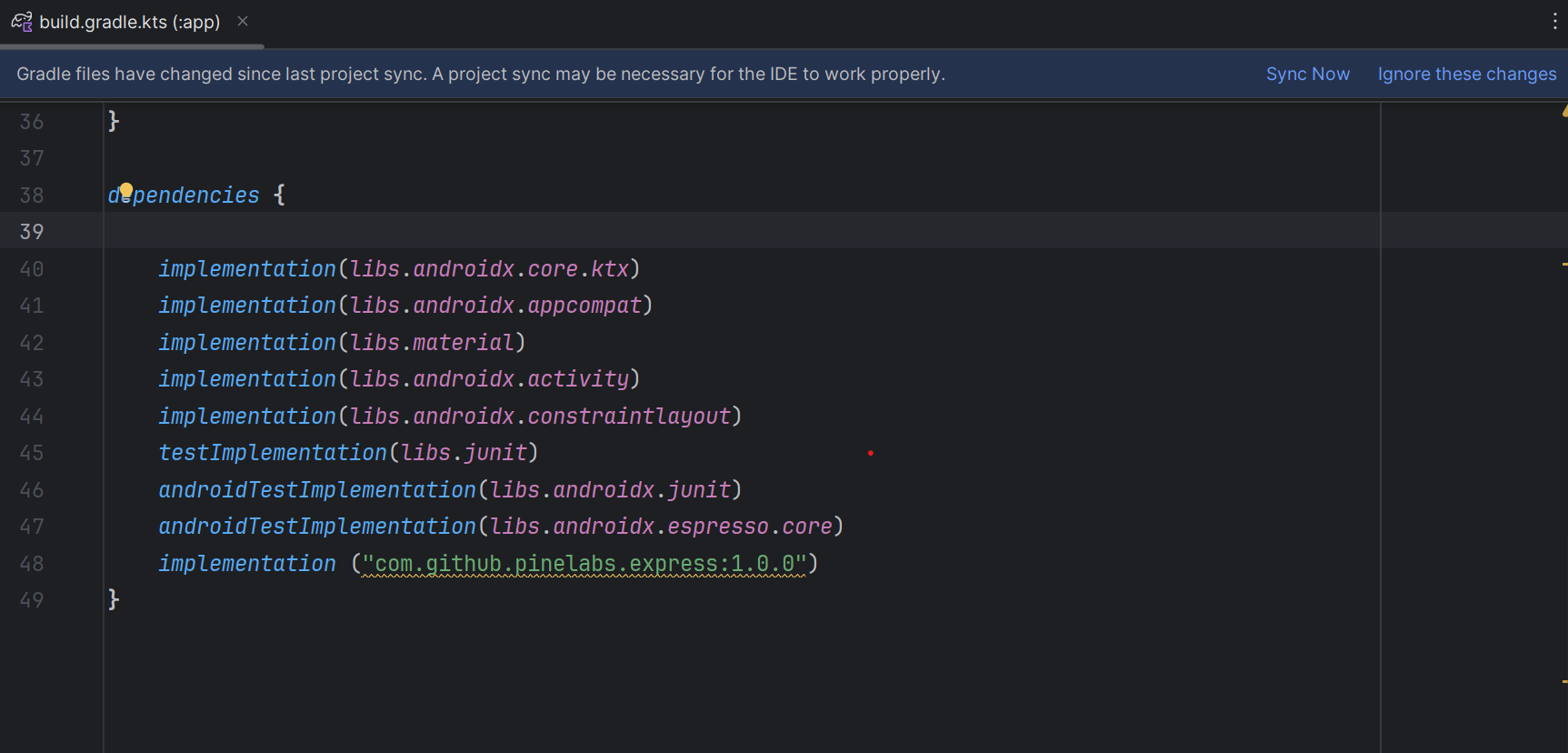
Figure: ADD SDK Dependency
2.2. Sync Your Project
Sync your project with Gradle to download the SDK and make it available in your build.
2.3. Initialize and Launch the SDK
Use the method below to start the SDK and pass the token received from the Create Order API.
ExpressSDKInitializer().initializeSDK(
    this@MainActivity,
    "${tokenEt.text}", // Replace with the actual Redirect token
    object : ExpressSDKCallback {

        override fun onError(
            errorCode: String?,
            errorMessage: String?,
            errorDescription: String?
        ) {
            Toast.makeText(
                this@MainActivity,
                "Error: $errorCode, $errorMessage, $errorDescription",
                Toast.LENGTH_LONG
            ).show()
            Log.e("ExpressSDK", "Error: $errorCode, $errorMessage, $errorDescription")
        }

        override fun onSuccess(
            responseCode: String?,
            responseMessage: String?,
            responseDescription: String?
        ) {
            Toast.makeText(
                this@MainActivity,
                "Success: $responseCode, $responseMessage, $responseDescription",
                Toast.LENGTH_LONG
            ).show()
            Log.i("ExpressSDK", "Success: $responseCode, $responseMessage, $responseDescription")
        }

        override fun onCancel(
            responseCode: String?,
            responseMessage: String?,
            responseDescription: String?
        ) {
            Toast.makeText(
                this@MainActivity,
                "Cancelled: $responseCode, $responseMessage, $responseDescription",
                Toast.LENGTH_LONG
            ).show()
            Log.d("ExpressSDK", "Cancelled: $responseCode, $responseMessage, $responseDescription")
        }
    },
    true // Set to false for PROD, true for UAT
)
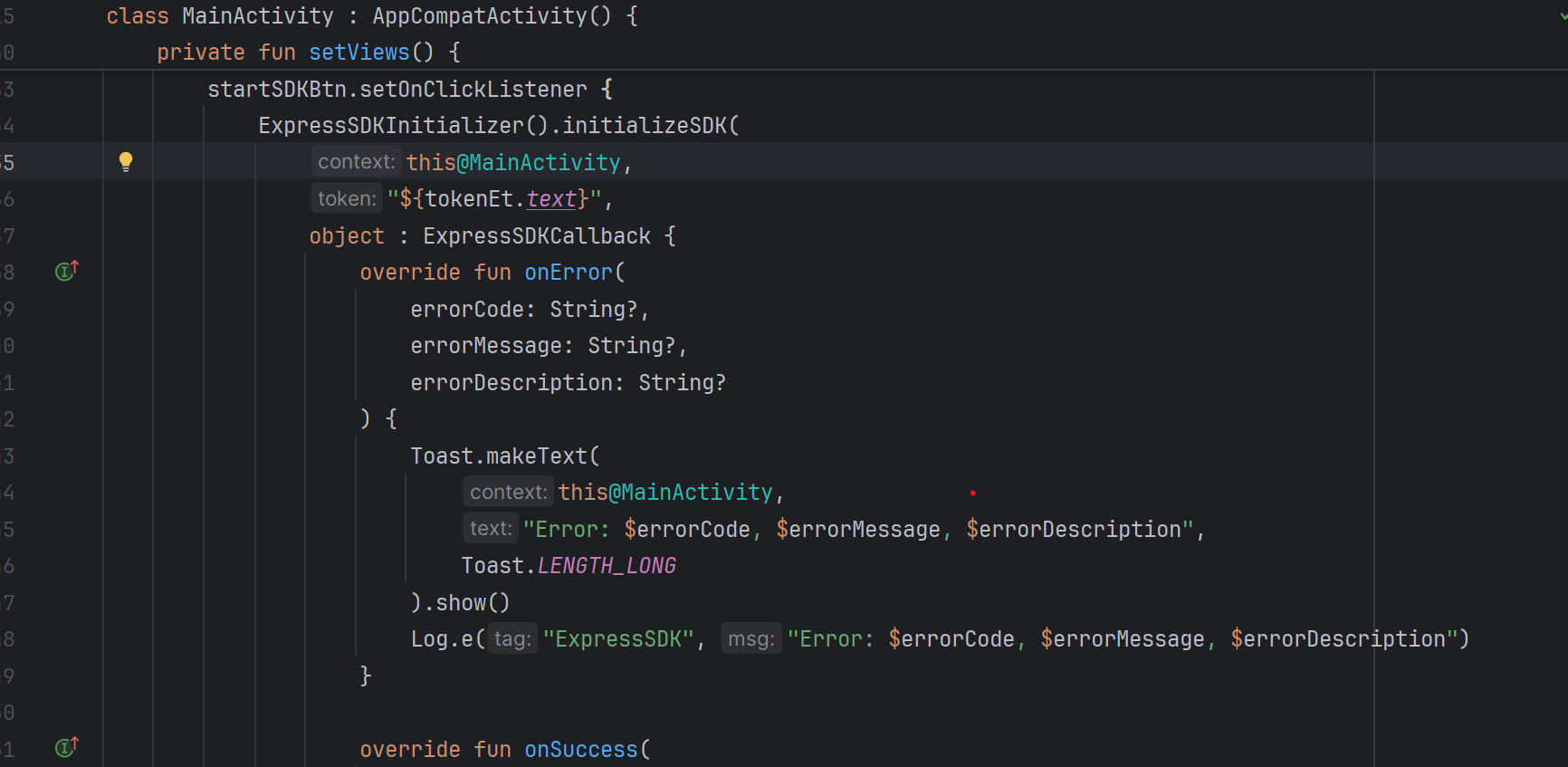
Figure: Initialize SDK
2.4. Configure the Environment
Configure the runInSandBox flag based on the environment:
- UAT (Testing):
SetrunInSandBox = true - Production (Live):
SetrunInSandBox = false
Note:
- Always validate the full flow in UAT before switching to Production.
2.5. Handle SDK Callbacks
The SDK triggers three callbacks via ExpressSDKCallback. Implement all three to manage the payment flow effectively:
1. onError
Triggered when an error occurs, such as network or API failures.
Provides:
errorCodeerrorMessageerrorDescription
2. onSuccess
Triggered when the transaction is successfully completed.
3. onCancel
Triggered when you customer cancels the transaction.
3. Manage Transactions
To get the status of the transaction made from your application, you can use our Fetch APIs to know the real time status.
3.1. Get Order by Order ID
Use this API to know the real time status of the transaction made on your application. Refer to our Get Order by Order ID API documentation to learn more.
3.2. Webhooks
You can configure the webhook events to know the status of your transactions. Refer to our Webhooks documentation to learn more.
Updated 9 days ago